AC Plus
Supported Services
Wireless Connection Mode
*Dependent on broadband subscription
WPS Push Button
2.4GHz
5GHz
Mac Filtering
Gigabit Ethernet LAN
Voice Port
USB Host Support
DDNS
The colours of each LED light on your AC Plus router have different meanings. Use this guide to understand more.
POWER LED
Internet LED
IPTV
LAN (1-4)
Your new router features dual band support which means that there will be 2 WiFi networks that you can connect to concurrently – on 2.4Ghz and 5Ghz frequencies
You can locate the default 5Ghz Network Name and password on your router by following these steps:
1. Turn over the WiFi Router so that underside is facing you.
2. Locate the WiFi label on the underside of the WiFi Router. The SSID and key for the default 5Ghz network is displayed. Find the network on your WiFi device and connect to WiFi Network with the default network key.
3. You’re now able to connect to the internet on your WiFi device.
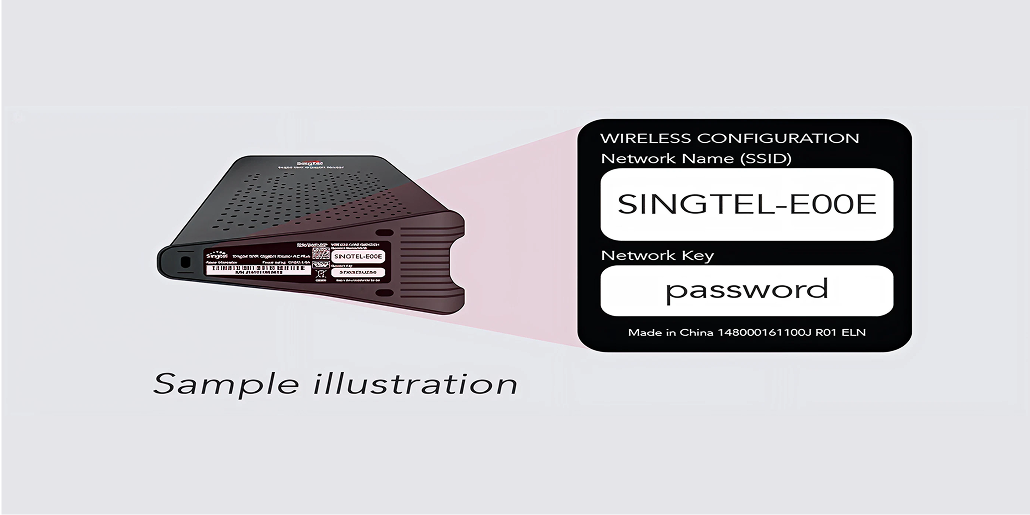
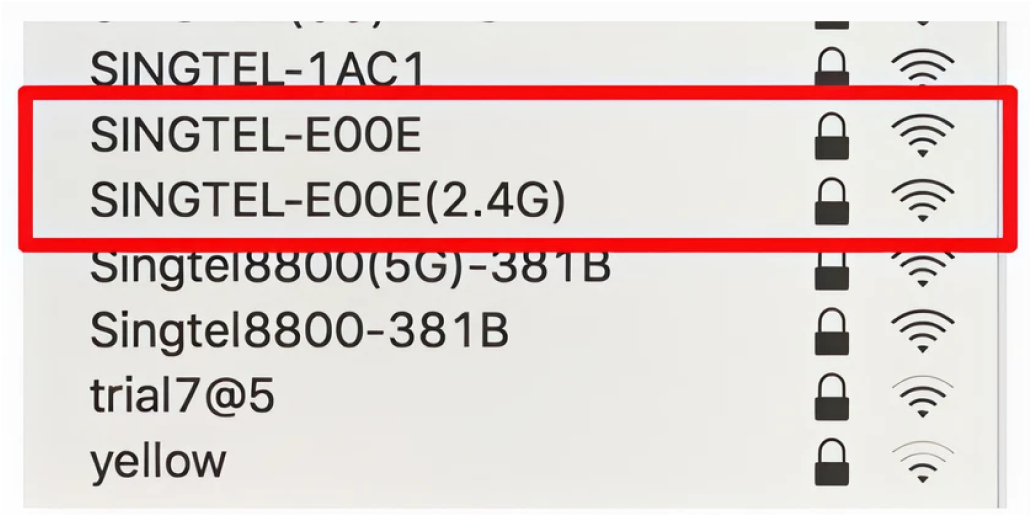
Your router also broadcasts another WiFi Network on the 2.4Ghz frequency. The SSID is not shown on the router label but you can see it when you scan for WiFi networks on your device.
The 2.4Ghz Network Name (SSID) is the same as the SSID displayed on the label but appended with “(2.4G)”.
The Network Key is the same as shown on WiFi label which is on the underside of the WiFi Router. Here’s an example:
Which network should I use?
The 2.4Ghz network has a wider range but is typically more congested, meaning you get slower speeds. We advise to connect your devices to the 5Ghz network when in range to enjoy the fastest speeds.
You can also let your device choose the best WiFi network to connect to if you have saved both networks on your device.
Follow these steps to check the information of the devices connected to your network.
1. Visit http://192.168.1.254 to view your router configuration page.
2. Scroll down to Device Info and Internet Connection to find the information.
Follow these steps to check the information of the devices connected to your network.
1. Visit http://192.168.1.254 to view your router configuration page.
2. Scroll down to Device Info and Internet Connection to find the information.
3. By default, you will see the 2.4GHz and 5GHz wireless settings, Band Steering and WPS feature.
4. To apply any changes made to your Wireless settings, click on the Apply button or cancel to disregard the changes.
For technical assistance with your device, please call 1688. Singtel will provide security updates up to 30 November 2024.
Related articles
Didn’t find what you are looking for?
Let us know what you need and we’ll connect you to the right team.