Smart home setups in Singapore: All you need to know
It’s easy to see the appeal of smart home setups.
Obviously, a smart home makes life extremely convenient – it's like you’re living in the future.
In this article, we’ll walk you through smart home setups, and teach you how to set up a smart home and change your life forever. (We’re only being slightly dramatic – it really does change your life!)
In this article:
PS: You can shop smart home appliances on Singtel and pay in 12, 24 or 36 month instalments!
Step 1: Determine your needs
Before you start setting up your smart home in Singapore, your only reference point is probably what you see in your friends’ homes, or on those home tour videos online.
While that’s a great starting point, it’s important to think about your own lifestyle and needs as well.
The goal is to figure out what smart home living means for you, and what smart home features are important for you.
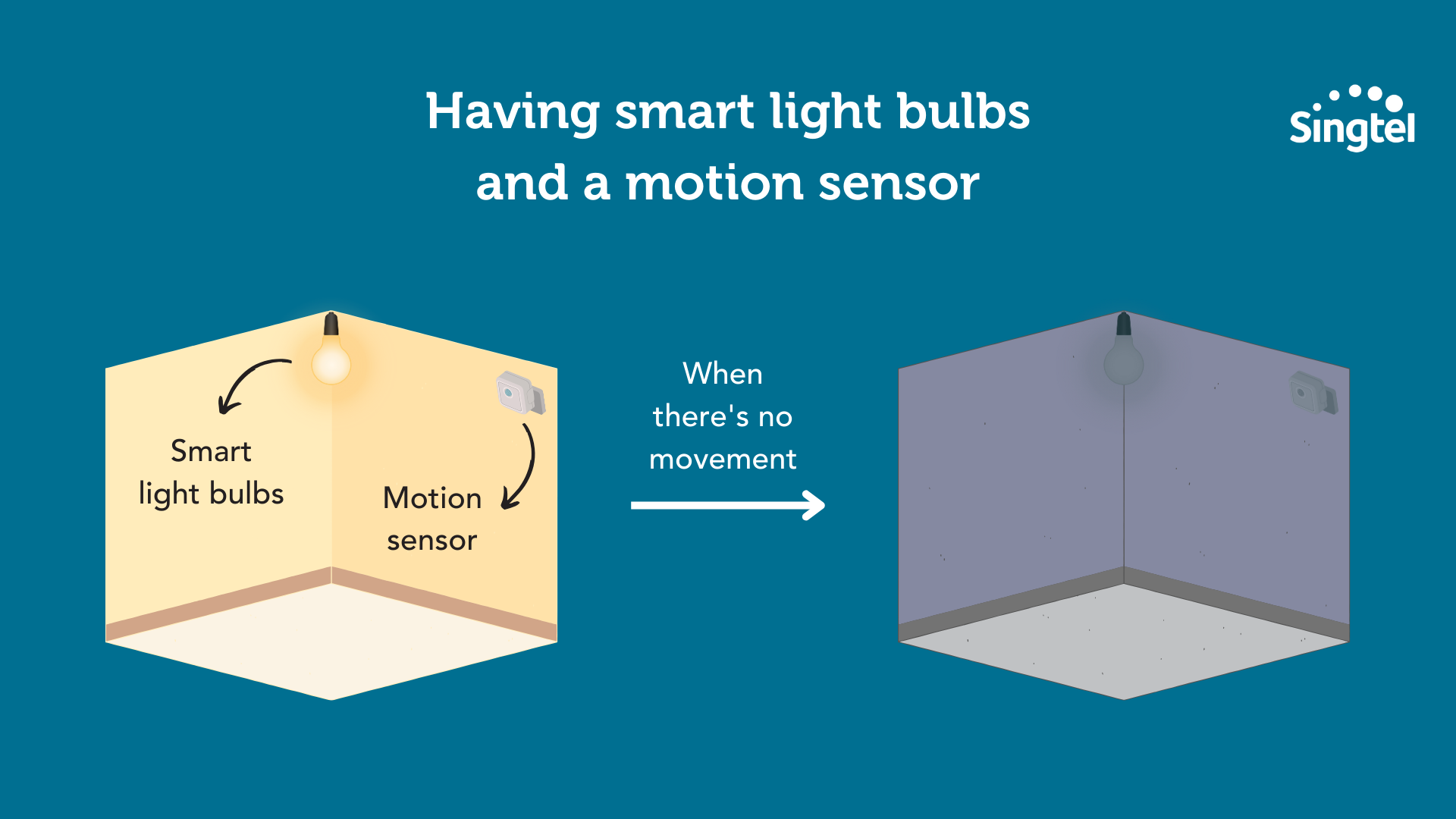
For example, if you often forget to turn off the lights before leaving the house, smart light bulbs and a motion sensor could be useful.
And if you have elderly family members or children in your home, consider smart sensors or cameras that can detect and alert you to any unusual movements in the house.
Step 2: Choose and purchase your smart devices
Once you’ve thought about your needs, start thinking about which smart home gadgets you want to use.
There are a few categories to keep in mind here:
Smart home products
Smart home sensors
Devices that let you control your other smart home products
Firstly, you’ll obviously need to purchase your individual smart home products:
Device | What it does |
|---|---|
| Smart thermostats | Allows you to control the temperature of your home remotely, saving energy and reducing your electricity bill. |
| Smart locks | Allows you to lock and unlock your doors remotely |
| Smart lights | Can be controlled remotely and can also be programmed to change colours or brightness levels based on your preferences. |
| Smart plugs | Allows you to control your appliances remotely and also monitor their energy usage. |
| Smart cameras | Allows you to monitor your home remotely and receive alerts when motion is detected. |
| Smart blinds | Can be controlled remotely and programmed to open and close based on a schedule or by voice commands. |
| Smart doorbells | Allows you to see, hear, and speak to visitors at your door remotely. |
| Smart fridges | Manage food inventory, track expiration dates, and adjust temperature settings. |
| Smart TV | Access streaming platforms, use voice control, integrate with other smart devices. |
As you look at the product functions, keep in mind that these are just the basic functions.
There are also more advanced functions (called “automations”) that you can unlock with by using two smart home devices together, or by using a smart home device + a sensor.
Here are some examples:
Device combination | What it does |
|---|---|
| Smart thermostat + smart air conditioning system | Automatically turns the air conditioning system on or off when the temperature reaches a certain level |
| Smart thermostat + smart blinds | Adjusts the blinds to block out direct sunlight during the hottest parts of the day |
| Smart lights + motion sensors | Turns on the lights automatically when motion is detected |
This brings us to our second category, which is sensors!
With sensors, you can get feedback from your environment, and set up an automation to react to whatever’s happening.
Take the smart lights + motion sensors use case, for example.
Because you have motion sensors installed, you can then program your smart lights to turn on automatically when someone steps into the room. (You won’t be able to do this without the motion sensors).
Here are more products that fall into the ‘sensors’ category:
Finally, our last category is devices that let you control other smart home products.
This includes:
Smart speakers (eg Amazon Echo, Apple HomePod)
Smart displays (eg Google Nest Hub)
Other devices such as the Aqara Cube (this allows you to interact with your smart home devices by rotating, flipping, shaking or tapping the cube. Each side of the cube is programmed to trigger specific actions from specific devices.)
Smart home hubs such as the Aqara G3 Camera Hub. (We’ll discuss smart home hubs + what they do in the next section.)
Smart home system or smart home hub?
Some people use the words “smart home system” and “smart home hub” interchangeably, but they don’t really mean the same thing.
Now, let’s discuss the differences between a smart home system and a smart home hub.
A smart home system is, well, a system that allows users to control their smart home appliances from a single app.
In comparison, a hub is a device that again allows users to control their smart home devices. (So with a hub, you have a physical device that you can put on your TV console or wherever’s convenient).
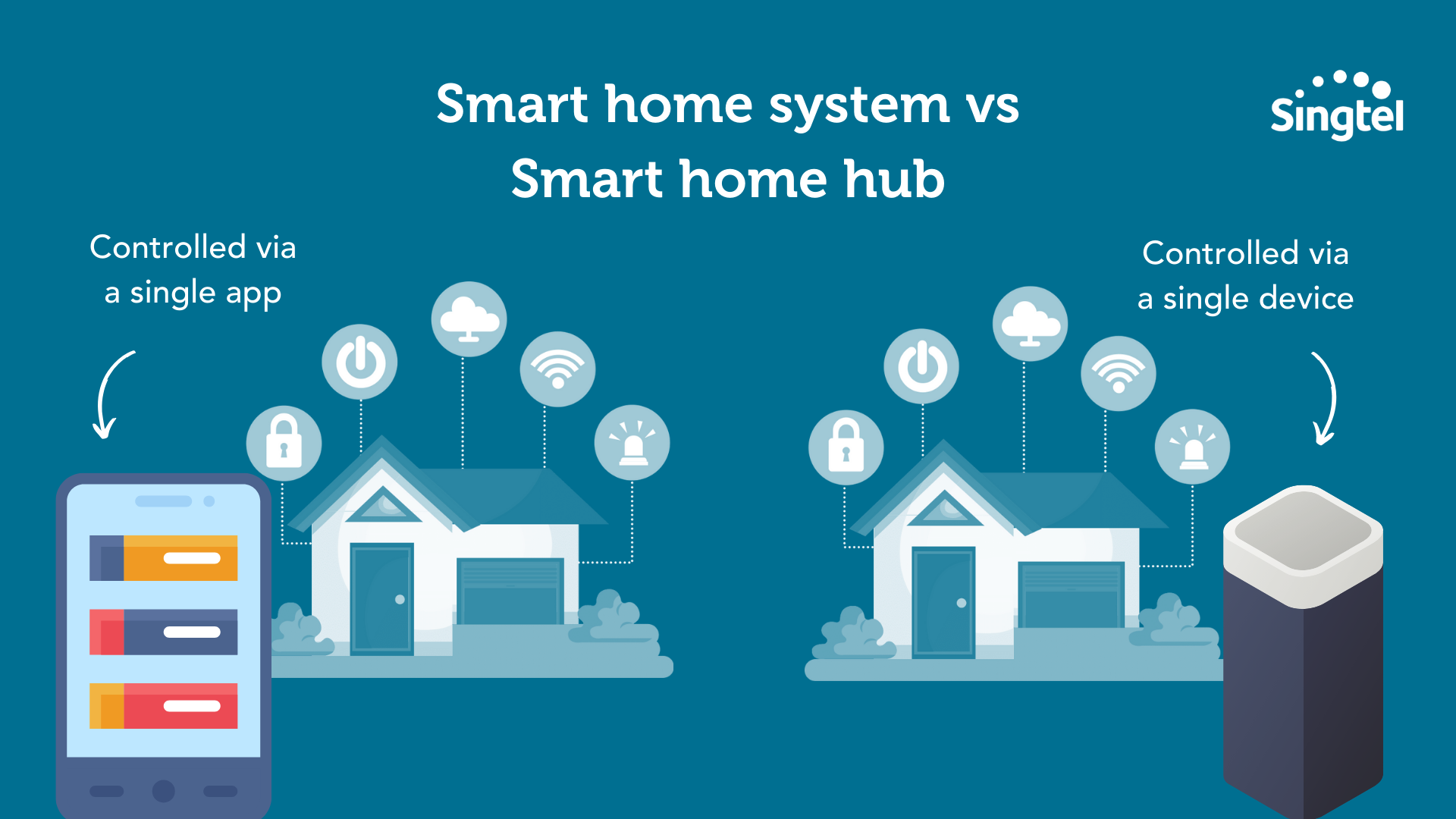
Let’s use the Samsung SmartThings (which is a system) and the SmartThings Hub (which is a hub) to illustrate.
Samsung SmartThings:
Allows users to automate their devices from a single app
Samsung SmartThings Hub:
Allows users to automate their devices from a single app
Allows users to create more complex automations**
Processes automations locally (meaning your automations will still function if your internet is down)
Can be used as a security system – it can trigger alarms and send notifications in case of a security breach
**Here’s an example of a complex automation that can be created with the SmartThings Hub, but not with SmartThings.
Let's say you have a smart lock on your front door, a motion sensor in your living room, and smart bulbs throughout your house.
With the SmartThings Hub, you can create a routine that automatically unlocks the front door and turns on the lights in the living room when the motion sensor detects movement, but only if it's after sunset.
Now that you understand the differences between systems and hubs, we’ll go on to discuss your options:
Option 1: Voice control or touch control only
Option 2: Use a smart home system (without a smart home hub)
Option 3: Use a smart home system with a built-in hub
Option 4: Use a smart home hub
Option 1: Voice control or touch control only
If you only have a few smart devices in your home, you may not need a dedicated smart home system or hub.
Instead, you can control your devices using voice commands or using touch controls on a touch screen interface.
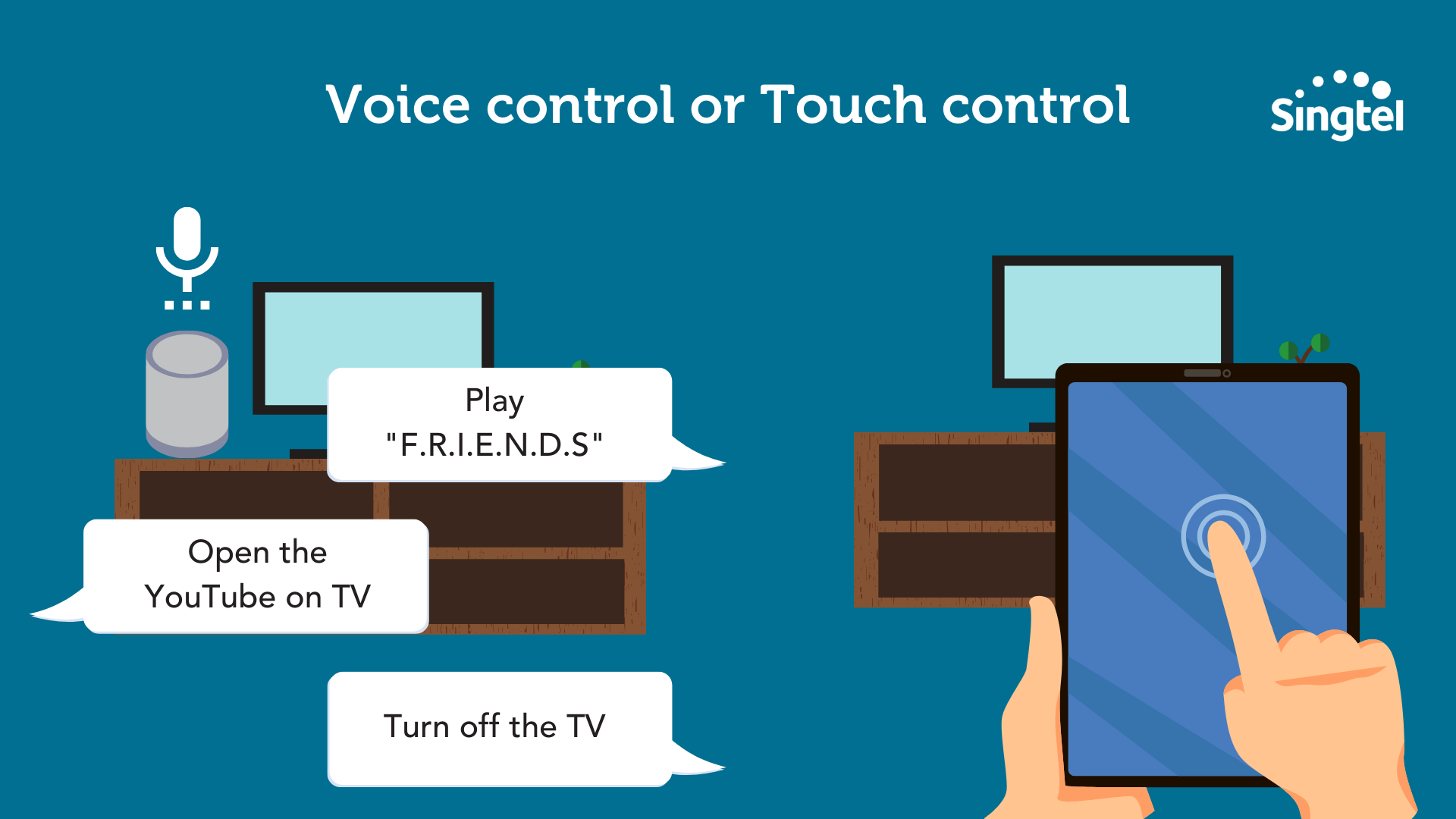
For example, if you have a smart TV and a smart speaker, you can control the TV using voice commands through the speaker or using a mobile app on your phone.
Option 2: Use a smart home system (without a smart home hub)
Many homeowners simply use smart home systems without smart home hubs.
This option is for folks who:
Are mainly concerned with being able to control your devices from a single place
Typically make use of simple automations but not complex ones
If that sounds like you, it’s perfectly fine to just use a smart home system like Samsung SmartThings.
In this scenario, you can simply connect your Samsung smart appliances to the WiFi, and use the Samsung SmartThings app to control them.
(Note that if you want to utilise SmartThings sensors for more advanced automations, this option won’t work for you – you'll need to get a hub!)
Option 3: Use a smart home hub
For folks who want to go crazy with their automations, and customise them completely, a smart home hub makes the most sense.
Here are a few smart home hubs to consider:
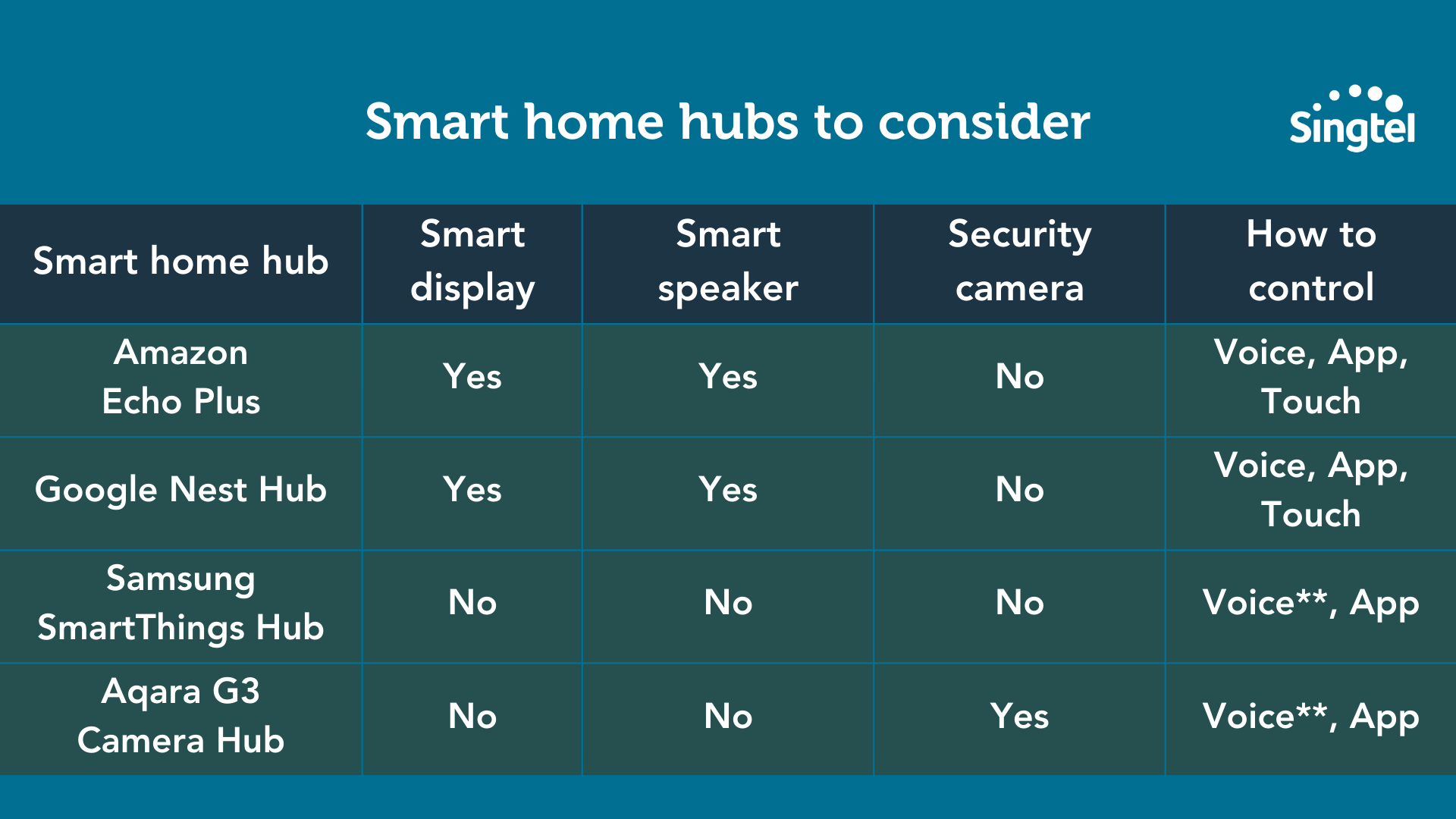
**If you noticed, the SmartThings Hub and Aqara G3 Camera Hub don’t come with smart speakers, but you can still use voice control for them.
It does require a bit of setup, but here’s how it works:
Connect the hub to your phone using the hub’s app (eg using the Aqara app).
Once it’s set up, you’ll be able to use voice commands and go through your phone’s voice assistant (eg Google Assistant or Siri) to control your hub.
As long as your phone is near to you and connected to the same WiFi network as the hub, you’ll be able to use voice commands on your hub, even though the hub doesn’t have a smart speaker.
So in choosing your smart home hub, think about what’s your favourite method of issuing commands.
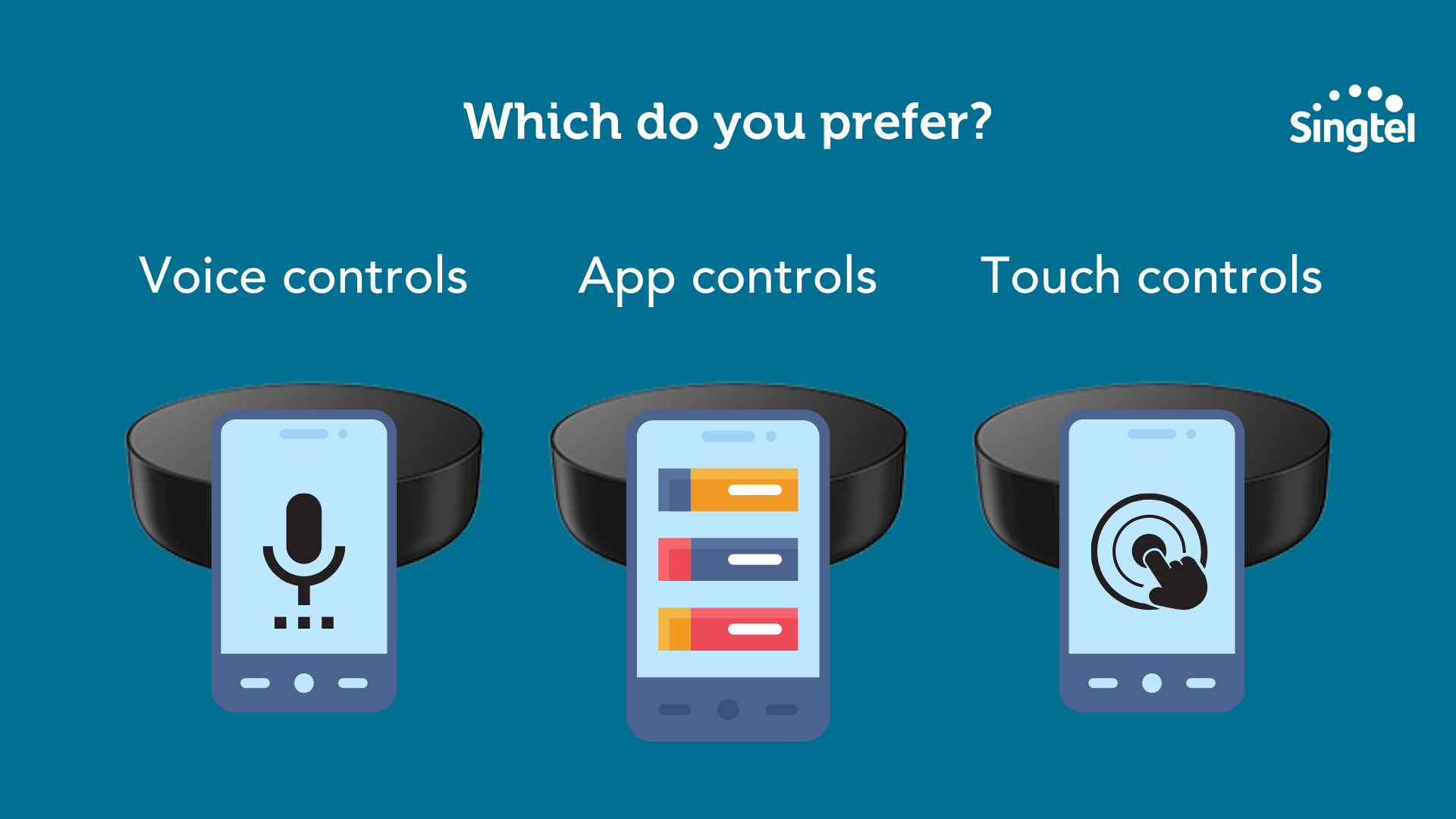
If it’s via voice, you’re covered – all the options work with voice commands.
The same goes for app commands – all the options allow you to control the hub via an app, but you might want to do some research to see which app’s UX is the most user-friendly.
When it comes to touch controls (meaning you’re tapping the screen on your smart home hub), only the Amazon Echo Plus and Google Nest Hub will let you do that.
With the Samsung SmartThings Hub and Aqara G3 Camera Hub, you can't use touch controls, since there’s no smart display on the device.
Again, it all boils down to your needs and preferences.
Step 3: Download and install smart home apps
Once you’ve decided on which smart home system / hub to use, the next step is to make your purchase, then download and install the smart home apps on your phone.
For example, if you’re using the SmartThings Hub, then search for the SmartThings app and install it on your phone.
Create an account and login, and follow the on-screen instructions to connect your smart devices to the app.
Once your devices are connected, you’ll be able to control them through the app. You can turn them on or off, adjust settings, and set up automation routines.
Step 4: Set up your automations
Here’s the fun part... setting up your automations!
We’ve talked about automations briefly, but let’s discuss them in more detail now.
Basically, automations allow your devices to work together and perform actions automatically based on certain triggers or conditions.
For example, you could set up an automation that turns on your lights and starts playing music when you come home.
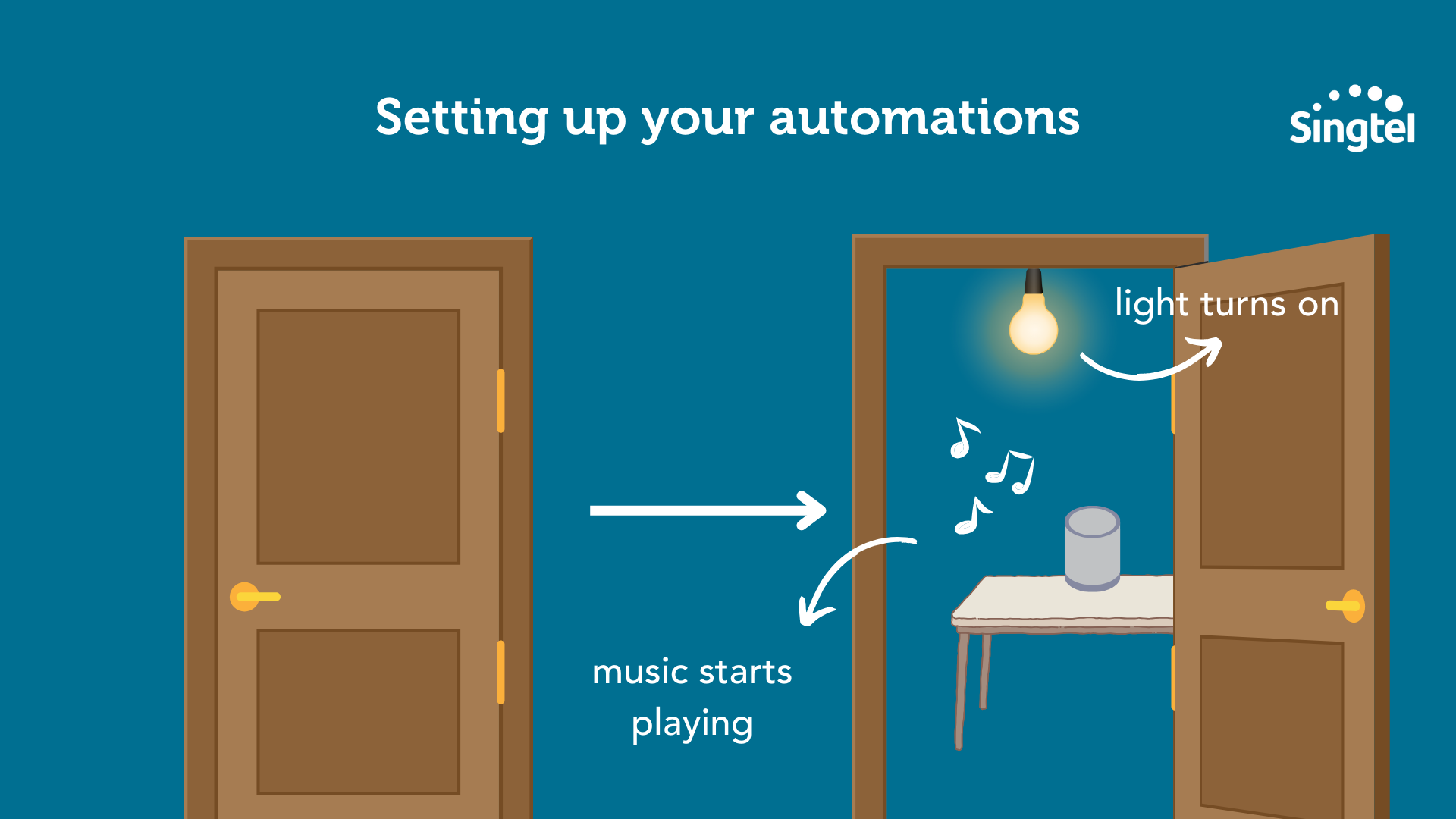
Here's how to set up automations:
Open your smart home app and go to the automation or routine section.
Choose the devices you want to include in your automation.
Set the trigger or condition for your automation. This could be based on a specific time, your location, a sensor detecting motion or a door opening, or a voice command.
Choose the action you want your devices to perform when the trigger or condition is met.
Save your automation and test it to make sure it works as expected.
The sky’s your limit when it comes to automations – you can be as creative as you want.
To get you started, here are some useful automations that you may want to use:
Turn on/off lights based on motion: Set up motion sensors to turn on/off lights automatically when you enter or leave a room.
Control air-conditioning: Set up your thermostat and air-conditioning to automatically turn the air-conditioning on/off based on the temperature. You can also trigger the air-conditioning based on time, and have it turn on/off at a specific time everyday.
Control other devices: Set up automations to automatically turn your devices on based on time. For example, you can set your coffee maker to turn on automatically every morning at 7am.
Location-based automations: Use geofencing to trigger automations based on your location. For example, you can set up a routine that turns on the lights and air conditioning when you arrive home.
Step 5: Test your smart home
Once you’ve got everything set up, it’s time to give your smart home a test drive!
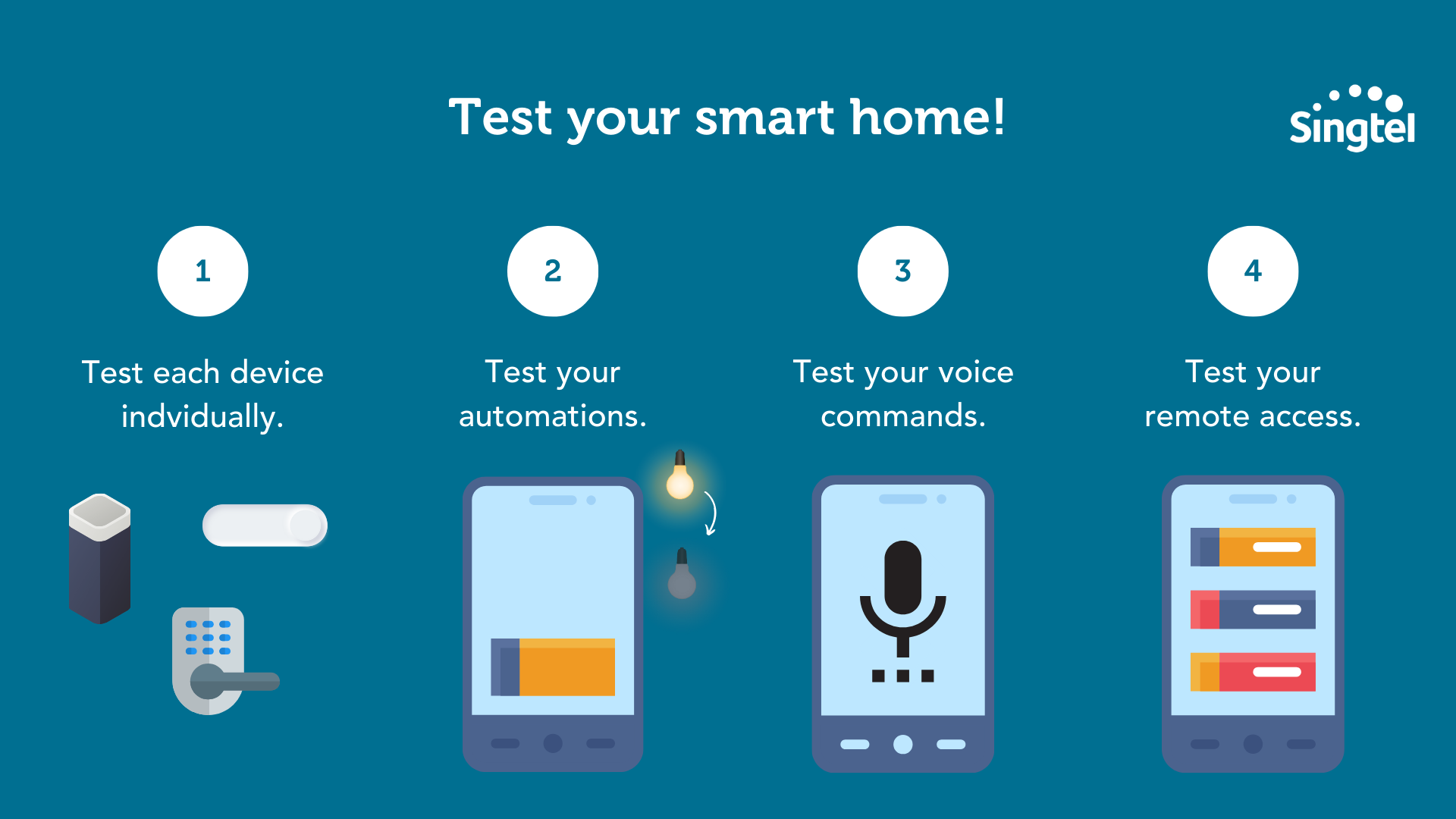
First, test each device individually.
For example, turn on and off a smart light switch to see if it responds correctly. Check that your smart lock can be unlocked and locked with the app. Try adjusting the temperature on your smart thermostat.
Next, test your automations.
If you've set up any automations, make sure they're working as expected.
For example, if you have a smart home security system that's supposed to turn on your lights when motion is detected, test that this works.
Next, test your voice commands.
If you've set up any voice commands with a virtual assistant like Google Assistant, test that these work correctly.
For example, try saying 'Alexa, turn off the living room lights' and make sure that the lights turn off.
Finally, test your remote access.
Try controlling your devices from your smartphone while you're away from home, to ensure that you have the necessary access and that the devices respond correctly.
A final word on setting up your smart home
Trust us – once you’ve experienced a smart home, you’ll never be able to go back 😉
Of course, there’s a bit of a learning curve when it comes to smart homes.
You’ve got to figure out how to build a smart home system, and then teach everyone in your family to use the system.
But the way we see it, the amount of convenience that you get with smart homes is definitely worth the effort in learning the technology.
Shop Singtel’s smart home products now.