Change WiFi network name and password via Optical Network Router (ONR)
Follow these steps:
1. Connect a LAN cable from a PC/Laptop to one of the LAN ports on the primary mesh.
2. Open a web browser and enter http://192.168.1.254 in the address bar.
3. Enter the following credentials to log in.
Username: support
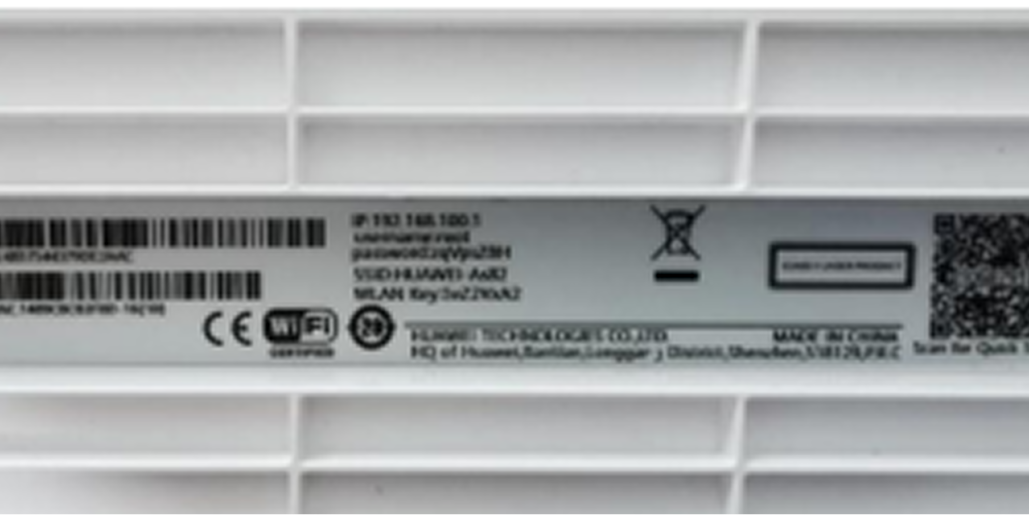
Password: reverse of the last 10 digits of the serial number
For example,
Product label SN: 485754438ACB4AAD
Password: DAA4BCA834
4. Go to Advanced Configuration > WLAN > 2.4G Basic Network Settings/5G Basic Network Settings
5. Input the relevant info in SSID Name and WPA PreSharedKey fields
6. Click Apply to confirm change.
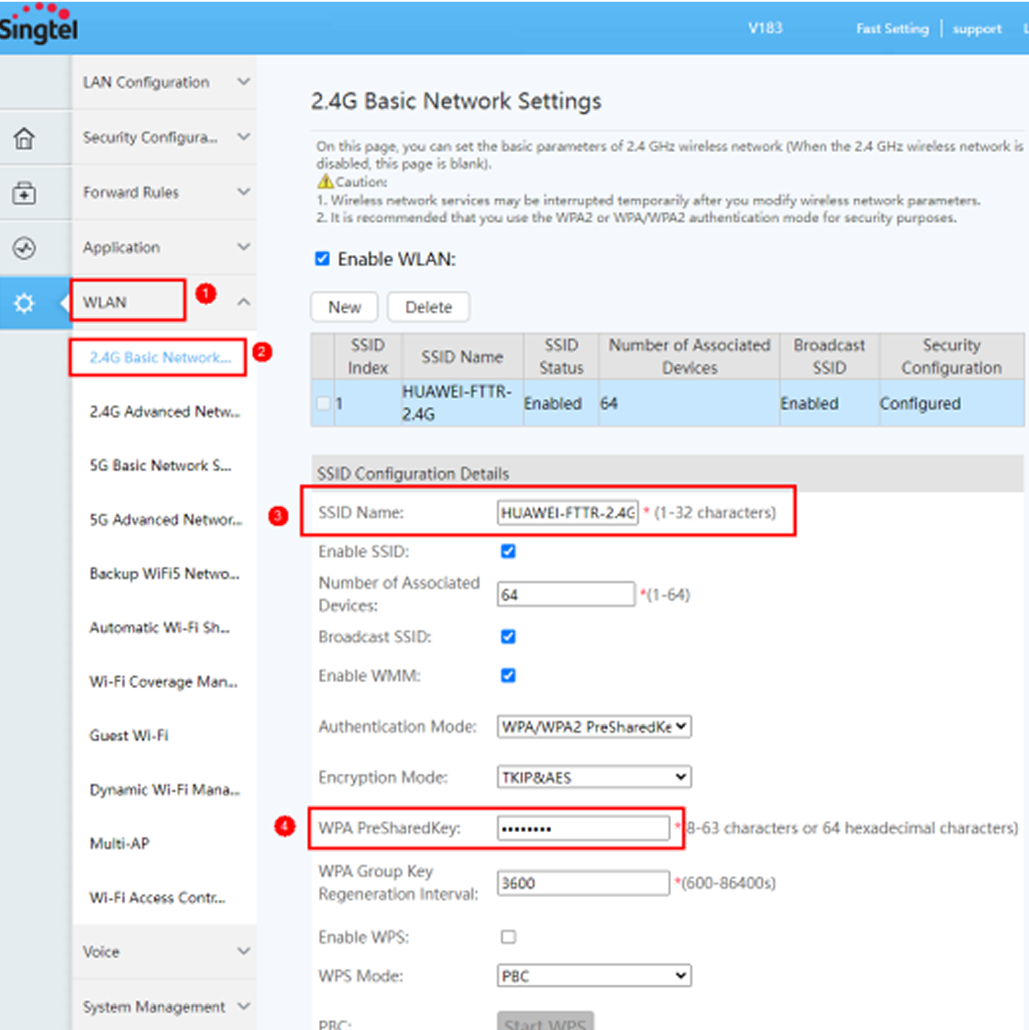
The WiFi settings configured on the first (primary) mesh are automatically synced to the subsequent node meshes.
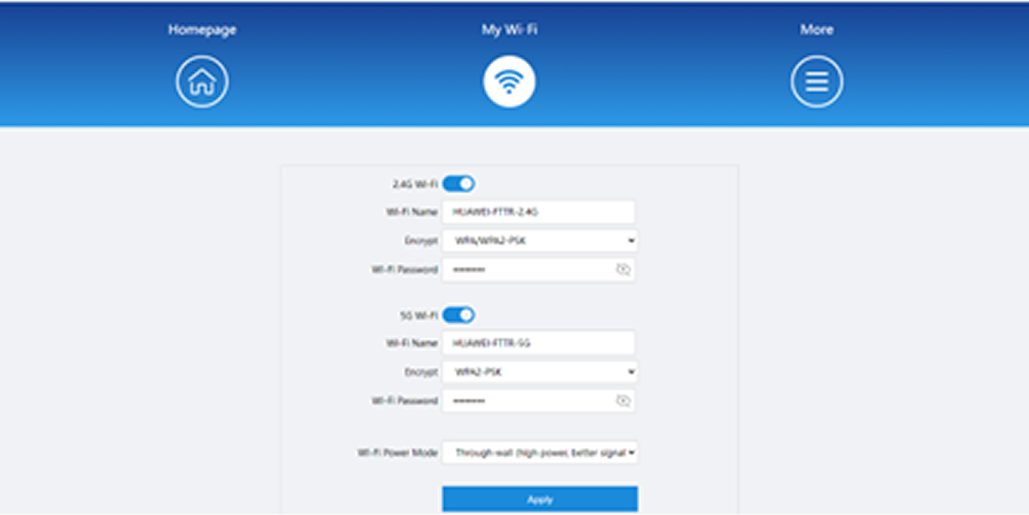
To have differing SSID/WiFi passwords on both the first and subsequent meshes, follow these steps:
1. Connect a LAN cable from a PC/laptop to one of the LAN ports of the second mesh.
2. Open a web browser and enter the IP address of the first mesh in the address bar.
3. Enter the password of the first mesh to log in to the webpage.
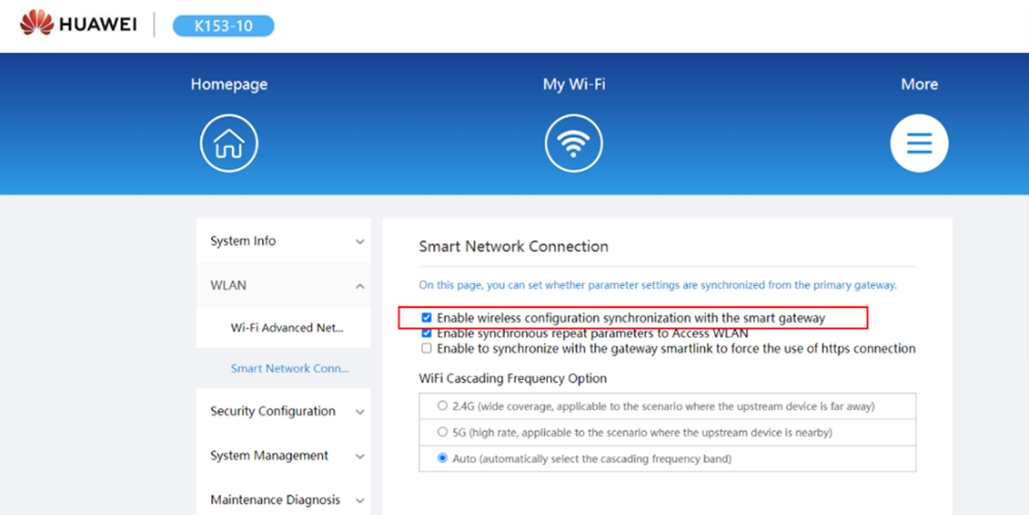
4. Go to More > WLAN > Smart Network Connection. Untick the box in red to disable the wireless configuration synchronisation.
Didn’t find what you are looking for?
Let us know what you need and we’ll connect you to the right team.