Change WiFi network name and password via Optical Network Terminal (ONT)
Select if you’d like to update the WiFi network name and password on your router or mesh.
Router
Mesh
Follow these steps:
1. Visit 192.168.1.254
2. Click General > Wireless.
3. On this page, scroll down for the list of routers until you see the one you’re using. Log into your specific router’s admin page with the corresponding details.
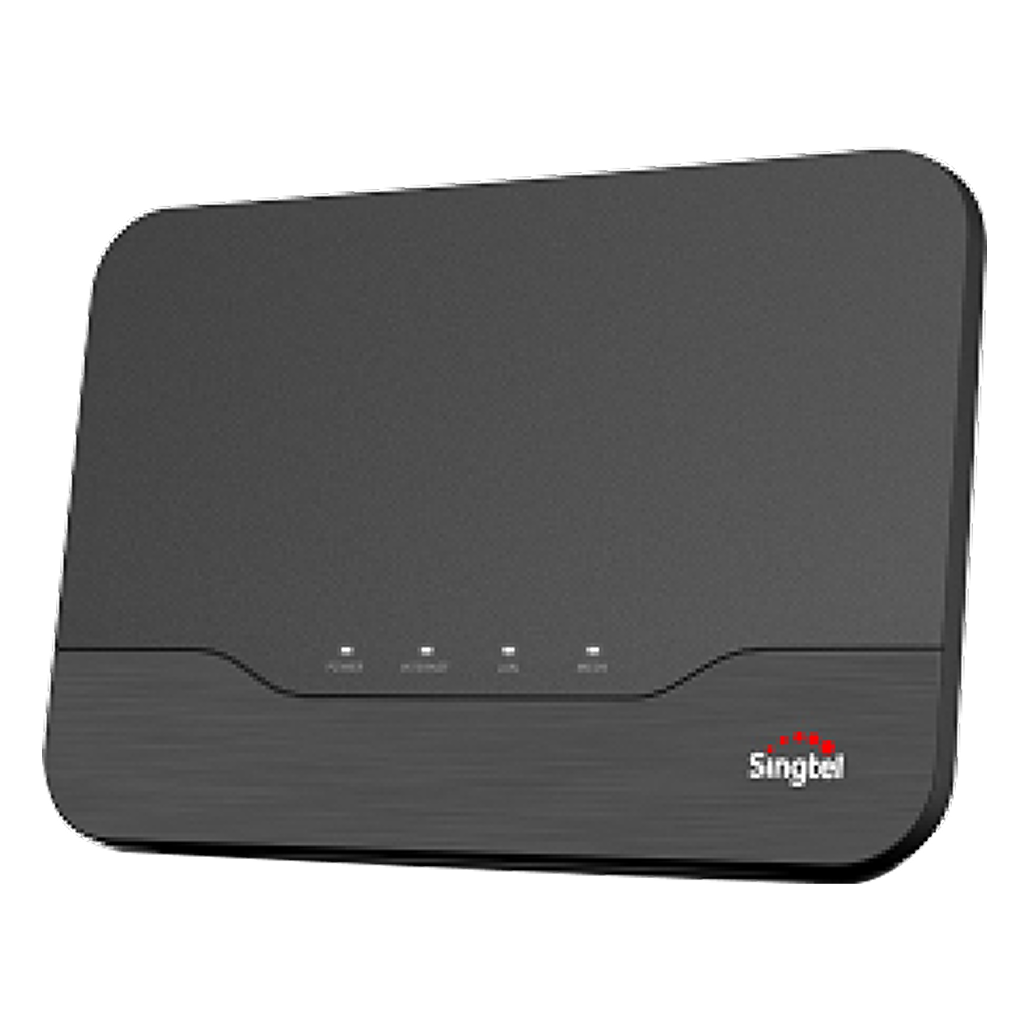
Singtel Mesh Router
Username: admin
Password: < Refer to the bottom of your device >
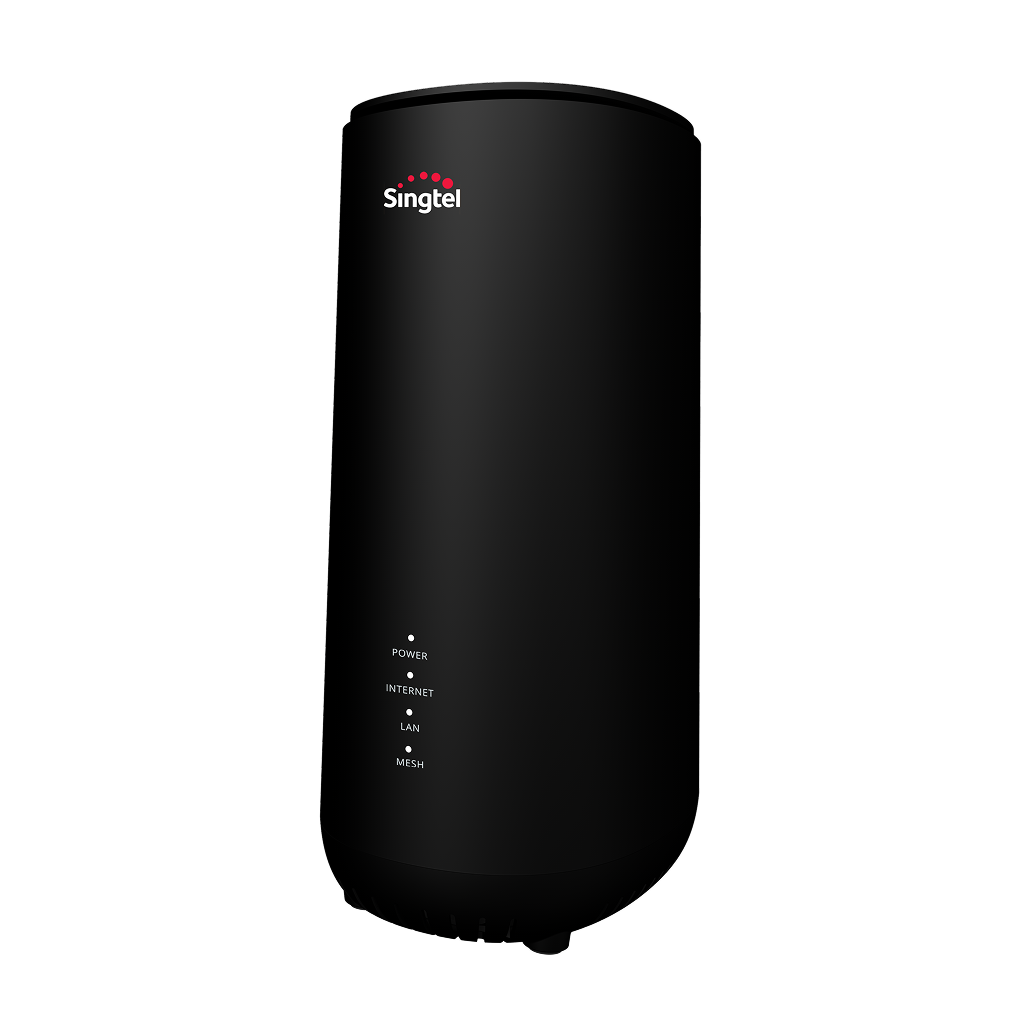
Wi-Fi 6 Router RT5703W
Username: admin
Password: < Refer to Login Info Password at the bottom of your device >
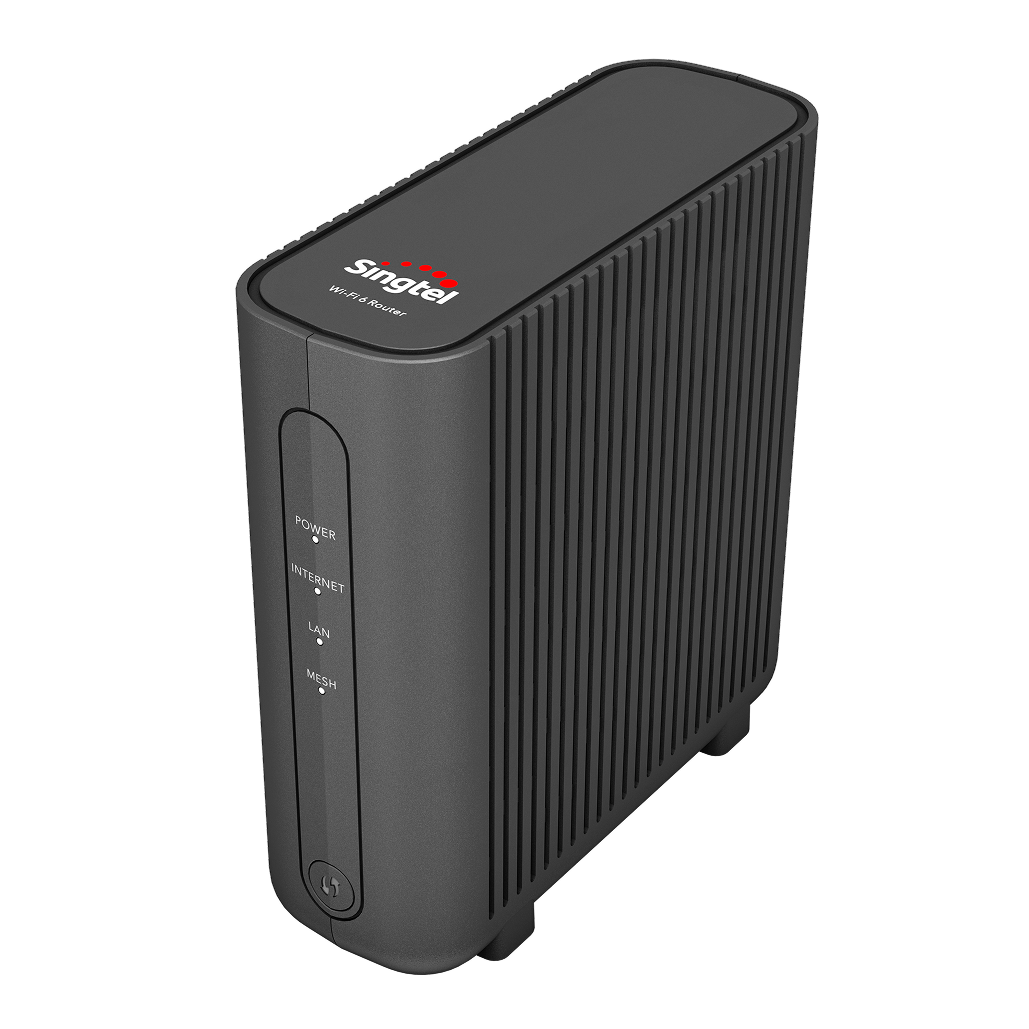
Singtel Wi-Fi 6 Router
Username: < Refer to Username at the bottom of your device >
Password: < Refer to Admin Password at the bottom of your device >
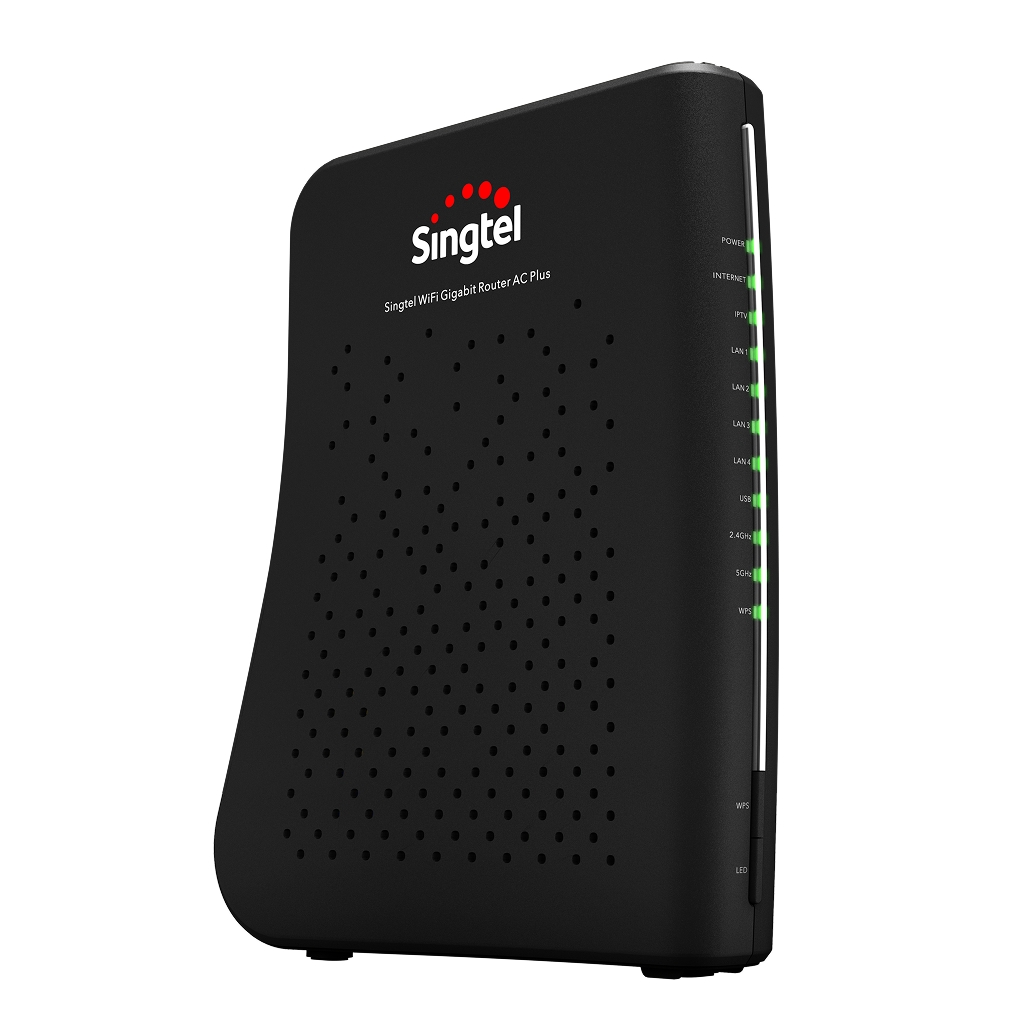
Singtel AC Plus
Password: < Refer to Serial no. on the bottom of your device >
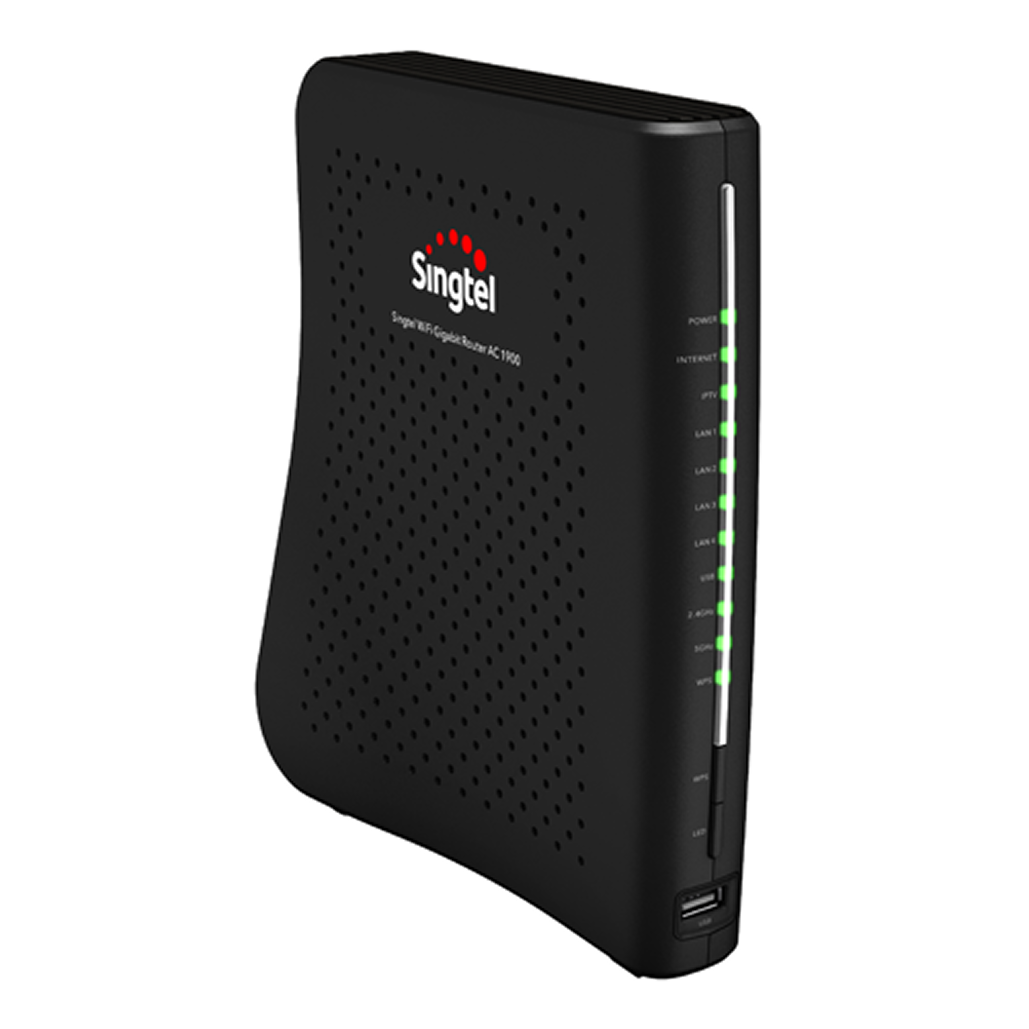
Singtel AC Elite (AC1900)
Password: < Refer to Serial no. on the bottom of your device >
4. Proceed to change your WiFi Network Name (SSID) and Password (Network Key). You can choose different passwords or use the same one for both 2.4GHz and 5GHz WiFi bands.
Follow these steps:
1. Visit 192.168.1.254
2. Click General > Wireless.
3. On this page, scroll down for the list of routers until you see the one you’re using. Log into your specific router’s admin page with the corresponding details.
Singtel Mesh Router
Username: admin
Password: < Refer to the bottom of your device >
Wi-Fi 6 Router RT5703W
Username: admin
Password: < Refer to Login Info Password at the bottom of your device >
Singtel Wi-Fi 6 Router
Username: < Refer to Username at the bottom of your device >
Password: < Refer to Admin Password at the bottom of your device >
Singtel AC Plus
Password: < Refer to Serial no. on the bottom of your device >
Singtel AC Elite (AC1900)
Password: < Refer to Serial no. on the bottom of your device >
4. On the admin page, look out for your device and its IP Address (usually 192.168.1.XX).
Askey AP5100W
"askeyap"
AirTies 4930
"air4930"
AirTies 4920
"air4920"
5. Enter your device’s IP address in your web browser.
6. If prompted, log into your device’s admin page with the corresponding details.
Askey AP5100W
Username: admin
Password: admin
AirTies
No login required
7. Proceed to change your WiFi network name and password with the corresponding details.
Askey AP5100W
To change WiFi Network Name (SSID), go to: 2.4 GHz Wireless > Basic
To change Password (Pre-shared Key), go to: 2.4 GHz Wireless > Security
Changes made to your 2.4GHz WiFi band will also be applied to the 5GHz WiFi band.
AirTies 4930
Click Quick Setup, then proceed to change your WiFi network name and password.
AirTies 4920
Go to Wireless > Network Name and Password, click Re-configure Access Point, then proceed to change your WiFi network name and password.
Related articles
Didn’t find what you are looking for?
Let us know what you need and we’ll connect you to the right team.