A comprehensive guide to Singtel eSIMs

Singtel eSIMs have landed – and if you’re an existing or new Singtel customer, you can now get your hands on a Singtel eSIM!
In this article, we’ll tell you exactly how to do just that, plus talk about how eSIMs work.
We’ll cover:
P.S: Want to get straight to it? You can get your Singtel eSIM with a Phone Plan here!
How does an eSIM work?
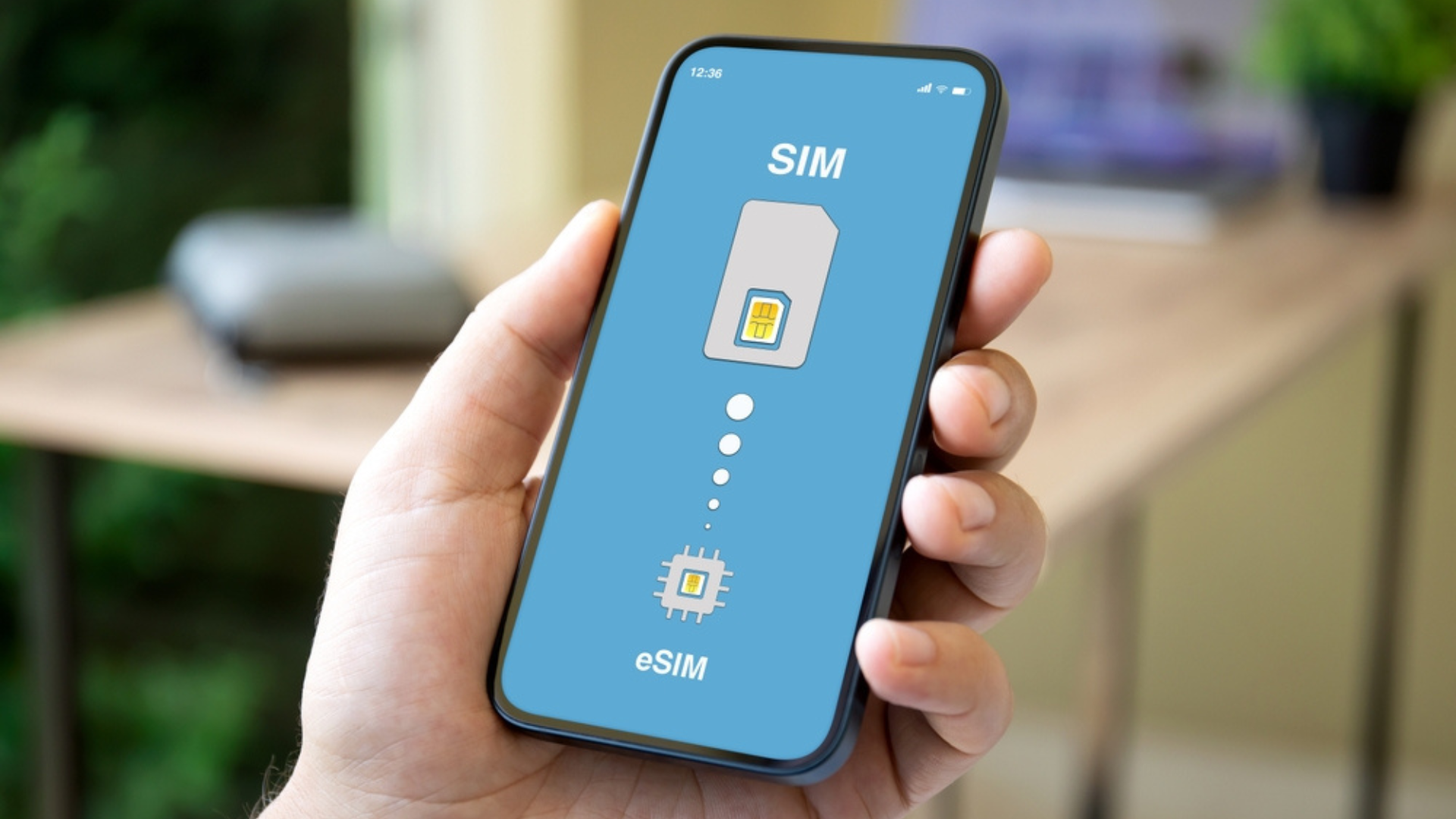
eSIMs work exactly like a physical SIM card – except that they're fully digital!
Unlike traditional SIM cards that are physical, removable chips, eSIMs are integrated directly into devices, such as smartphones, tablets, or wearables.
They function by storing subscriber information digitally, so users can switch between different mobile networks without needing to physically swap SIM cards.
When activating a new device with an eSIM, users can download their subscriber profile over the air (OTA) from their mobile network provider, eliminating the need for physical SIM card insertion.
Benefits of using eSIMs over physical SIM cards include:
There are many benefits to using eSIMs over physical SIM cards, such as:
How to get a Singtel eSIM
To get your Singtel eSIM, you need to be on one of Singtel’s mobile plans:
For new users, go ahead and sign up for the plan of your choice, and request an eSIM when you’re asked what type of SIM you want.
For recontracting users, when you recontract, you can also indicate that you want an eSIM.
Once that’s done, you’ll receive an email* that contains your Singtel eSIM and you can proceed to set it up!
*If you purchased a phone with your plan, you’ll only receive this email upon delivery or collection of your new phone.
How to set up your Singtel eSIM
There are 3 ways for you to install your Singtel eSIM – via My Singtel App, a QR code or the device settings on your phone.
How to set up your Singtel eSIM via My Singtel App
Make sure you’ve got My Singtel App installed on your phone.
Open your eSIM email in the phone you wish to install your eSIM in.
Click on the 'Install eSIM' button under 'Step 2: Install your eSIM'.
You will be directed to My Singtel App’s loading screen with your unique eSIM code.
Follow the steps specified within the app.
How to set up your Singtel eSIM via a QR code
Open your eSIM email on a separate mobile device or on your desktop.
Scroll down to 'Alternatively, try this instead.' where you will find a unique QR code.
Using the mobile device that you want to install your eSIM in, scan the QR code using the camera application.
You’ll be directed to your phone settings.
Follow the steps to install your eSIM.
How to set up your Singtel eSIM via device settings
For iOS devices:
Go to Settings > Mobile Service > Add eSIM
Use QR code
For Samsung devices:
Go to Settings > Connections > SIM Manager > Add eSIM
Scan QR code
For non-Samsung Android devics:
Go to Settings > Network & Internet > SIMs > Add SIM > Download a new eSIM
Scan QR code
Whichever way you choose, your Singtel eSIM will be ready to use within minutes of activating it!
Singtel eSIMs: FAQs
Still have some burning questions about Singtel eSIMs? Read on to find out more.

Q: Does my phone support eSIM?
A: Most mobile phone models released from 2020 onwards support eSIMs.
Selected tablets like the iPad Mini (5th Gen or later), iPad (7th Gen or later), iPad air (3rd Gen or later), iPad Pro 11-inch (1st Gen or later), iPad Pro 12.9-inch (3rd Gen or later), Samsung Galaxy Tab S9 and Samsung Galaxy Tab A9 are also able to support eSIMs.
Q: How many phones or devices can my Singtel eSIM be downloaded and installed into?
A: Your Singtel eSIM can only be downloaded once and installed on one device.
Q: Can I install multiple eSIMs in one single phone?
A: Yes, that’s the beauty of eSIMs – you can have multiple eSIMs on a single phone.
However, most phones only allow you to have 2 active eSIMs at any point in time.
You can still have more (unactive) eSIMs installed in your phone – it's just that only 2 can be active at the same time.