9 things that Samsung Bixby can do for you
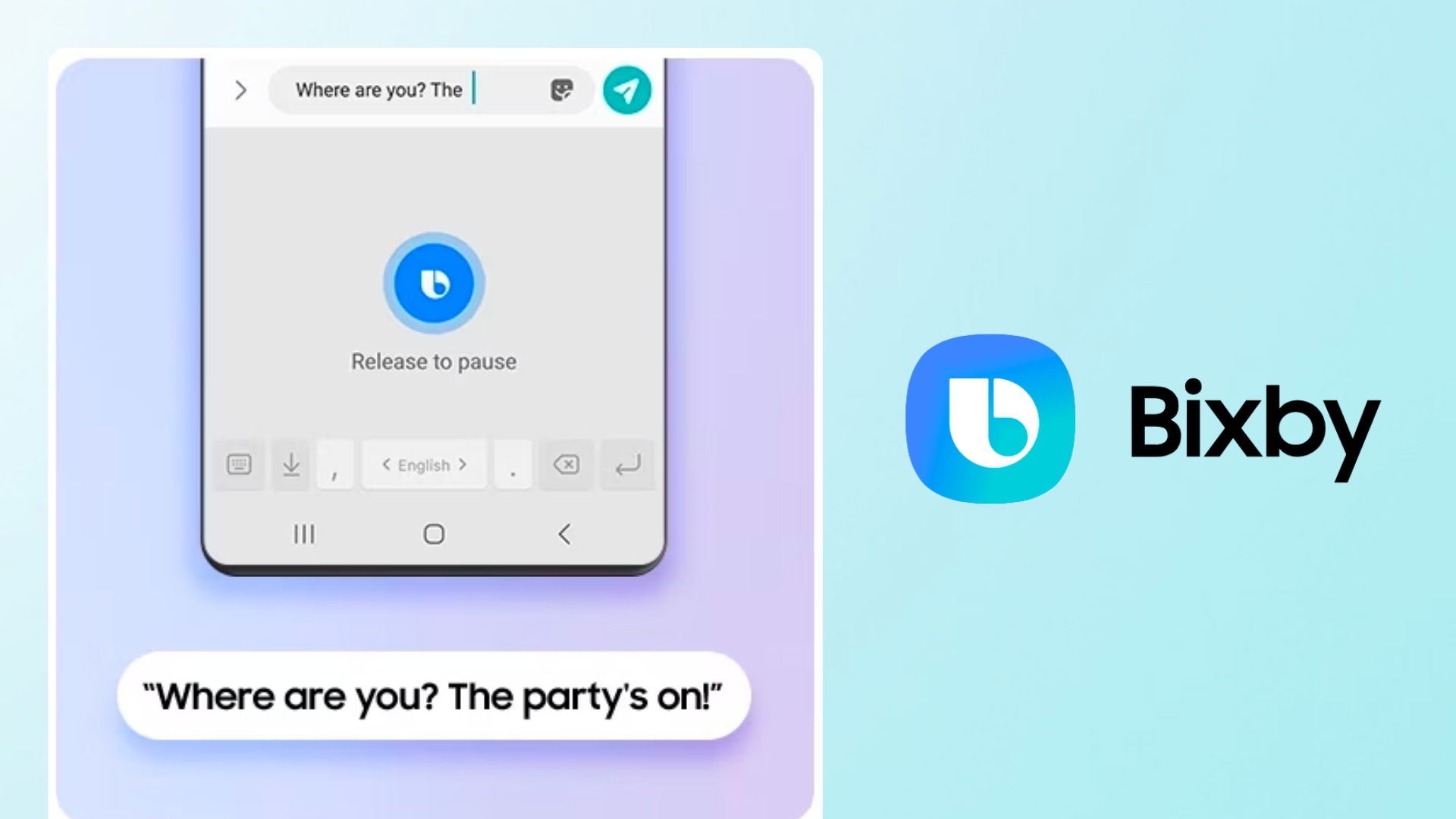
Meet Samsung Bixby – Samsung's very own AI assistant.
Need to send a text message while you’re driving? You can use Samsung Bixby.
Want to turn off your alarm or answer calls with just your voice? You can use Samsung Bixby.
Taking a group shot from far away? Again, you can use Samsung Bixby!
In this article, we’ll explore the different things you can do with Samsung Bixby and how it can value-add to your life.
We'll cover:
What is Samsung Bixby?
Now that you know what Samsung Bixby is, let’s discuss what it can do for you.
What can you do with Samsung Bixby?
Now that you know what Samsung Bixby is, let’s discuss what it can do for you.
#1: Samsung Bixby makes photo-taking easy
If you want to take a picture with a self-timer, you can use Samsung Bixby to do that.
Just open the camera app and say any of the trigger words (“Smile”, “Cheese”, “Capture” or “Shoot”) to activate this feature.
Another way to do it is to use a voice command, such as “Bixby, take a picture.”
You can be as detailed as you want – for example, you can specify: “Bixby, take a picture with the front camera”, or “Bixby, take a picture in Pro mode.”
#2: You can use Samsung Bixby remind you of things
Here’s a first-world problem that many people can relate to – forgetting where you parked your car.
You can now set a reminder with Bixby, and get Bixby to tell you where you parked.
For example: “Bixby, remind me that I parked at Lot A2 at 5pm.”
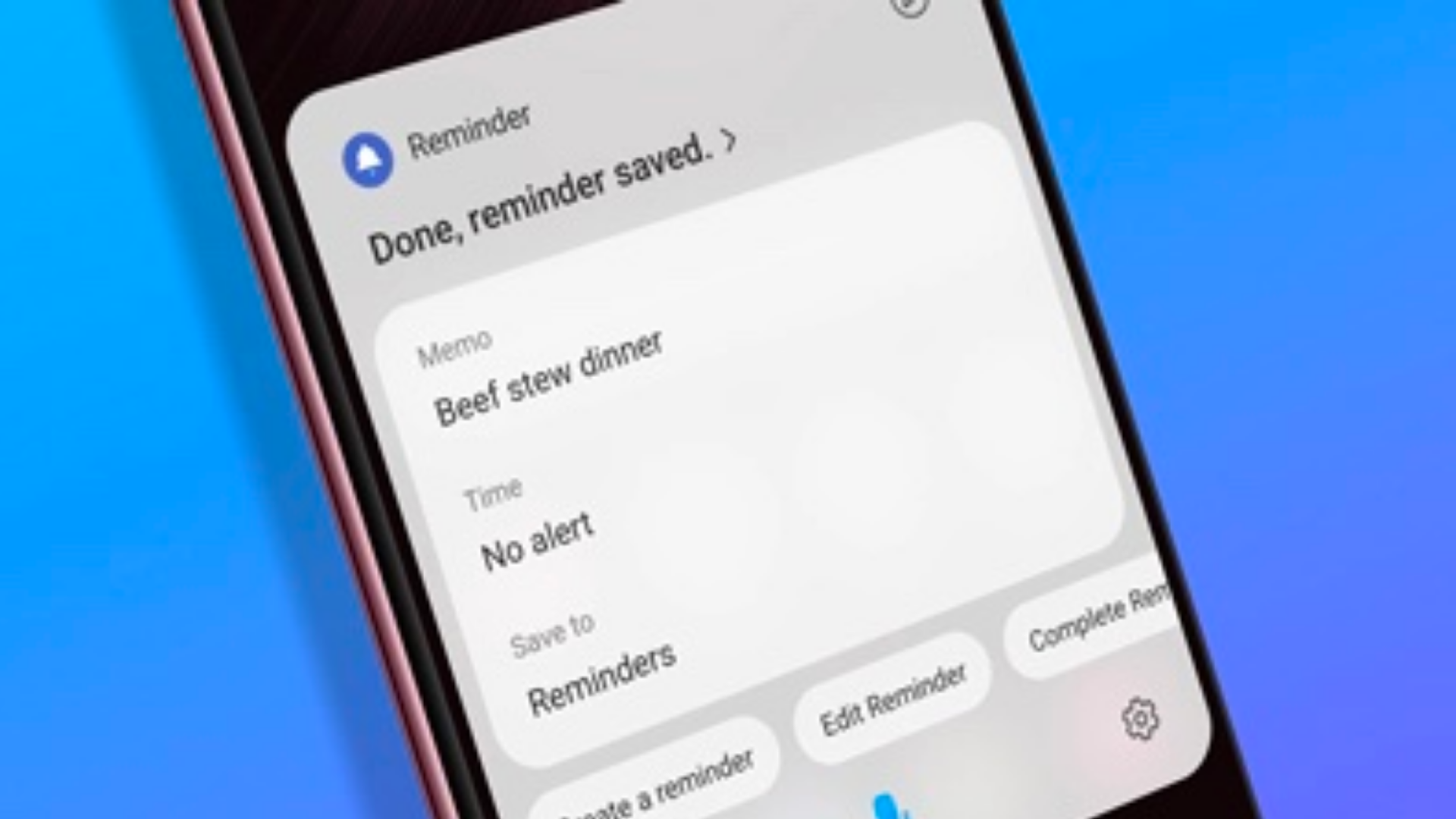
You can also set repeat reminders for recurring events, so you’ll never miss a deadline again.
This serves as a great way to keep track of important tasks or follow-ups.
#3: Samsung Bixby keeps you updated on the weather
Want to get a weather update?
You can easily ask Samsung Bixby about the weather conditions in your area!
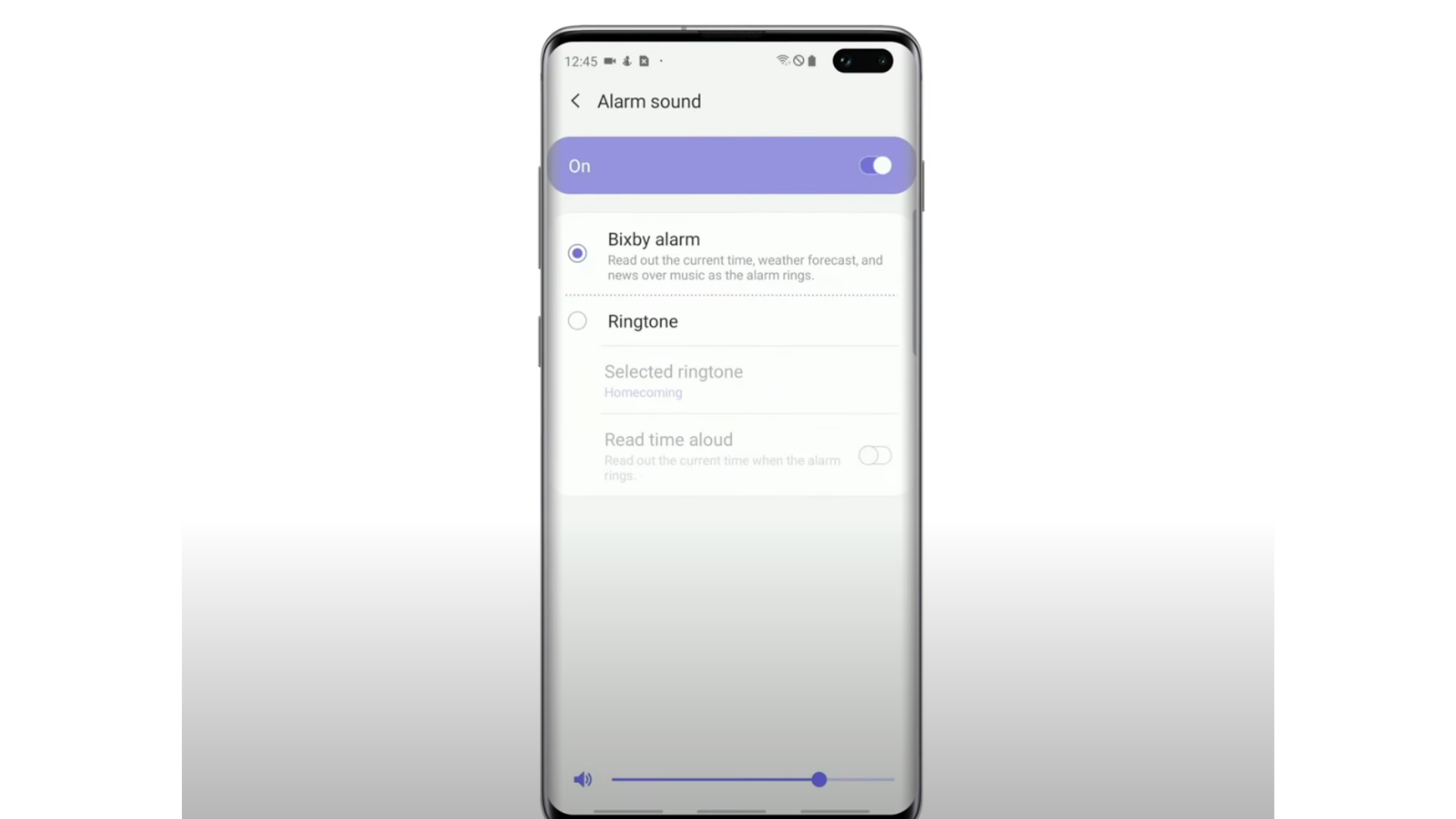
If you have the habit of checking the weather every morning, you can also program a special Bixby alarm that reads out the weather forecast when activated.
#4: Samsung Bixby helps to retrieve your photos and more
You know how it’s really troublesome to scroll back in your photo album and try to locate a picture that you took ages ago?
Well, here’s where Samsung Bixby comes to the rescue!
Let’s say you’re looking for a picture of a dog.
You can simply tell Bixby: “Look for a picture of a dog”, and it will pull up relevant pictures from your gallery.
You can be as specific as you want here – so you can also say “Look for a picture of a white dog” or “Look for a picture of a dog on a leash”.
This doesn’t just work with photos – you can also use Samsung Bixby to retrieve emails and webpages in your web app as well!
#5: Samsung Bixby helps you take notes
With Bixby, it’s easier than ever to take notes.
Just say “Hi Bixby, dictate.” *
Bixby will automatically start typing down the words and phrases it hears.
*Make sure you’ve got “Dictation on keyboard” toggled on in your Settings!
#6: Samsung Bixby helps you identify and learn about objects
Much like Google Lens, Samsung Bixby Vision can help you identify what a particular item is.
Just open your camera app, then point it at the item you want to identify.
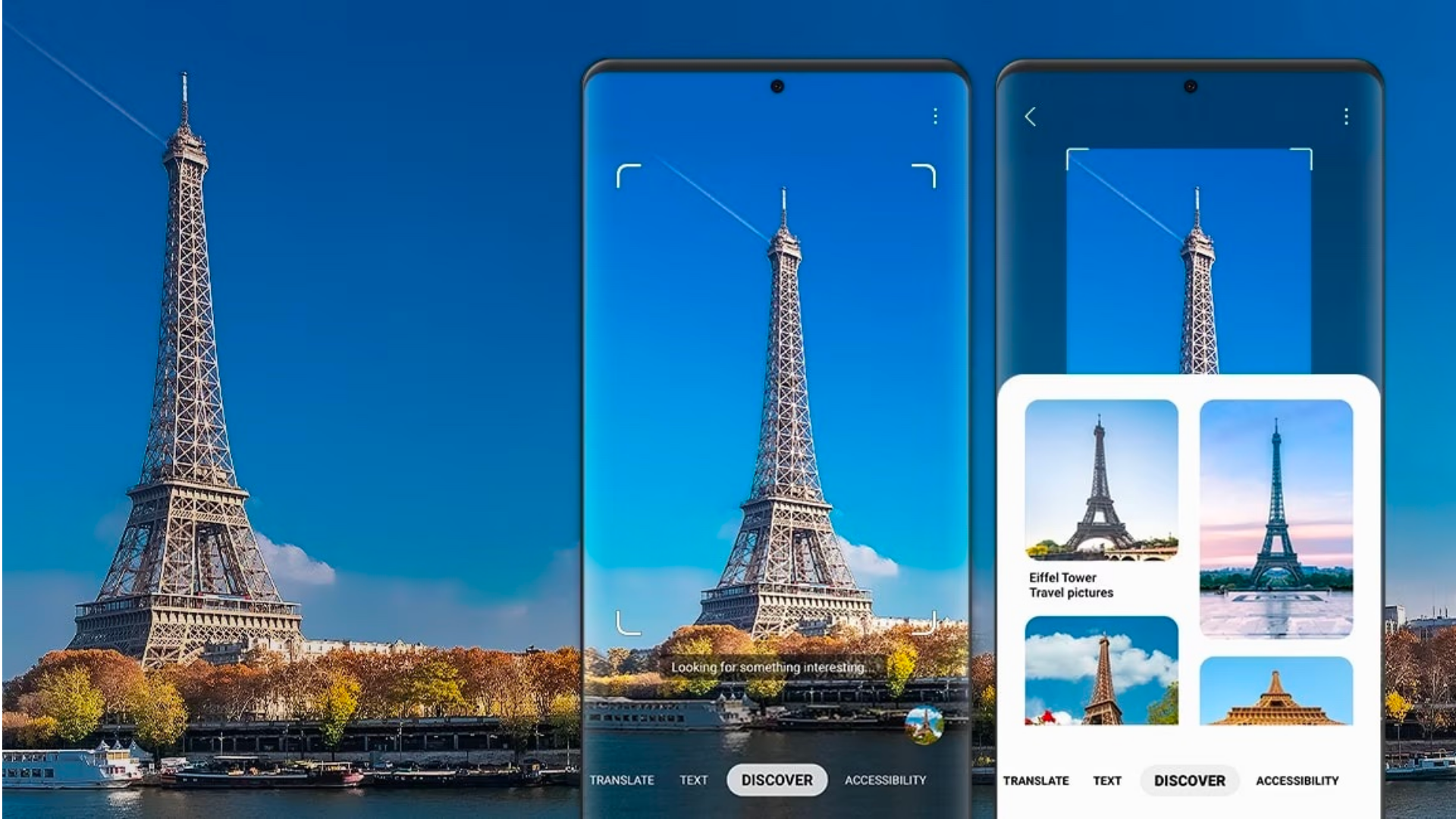
Samsung Bixby will then bring up images from the Internet that look similar to the object, and you can tap into the search results to learn more.
Here are some ways you can use it:
#7: Samsung Bixby allows you to change (most of) your device settings
Want to update your phone settings?
You can use Samsung Bixby to adjust most of your settings, including:
Just tell Bixby which setting you want to adjust (using voice control), and it’ll take care of the rest.
#8: Samsung Bixby translates languages in real-time
Just like Google Translate, Samsung Bixby Vision’s Translate feature can help you scan and translate text through your device’s camera.
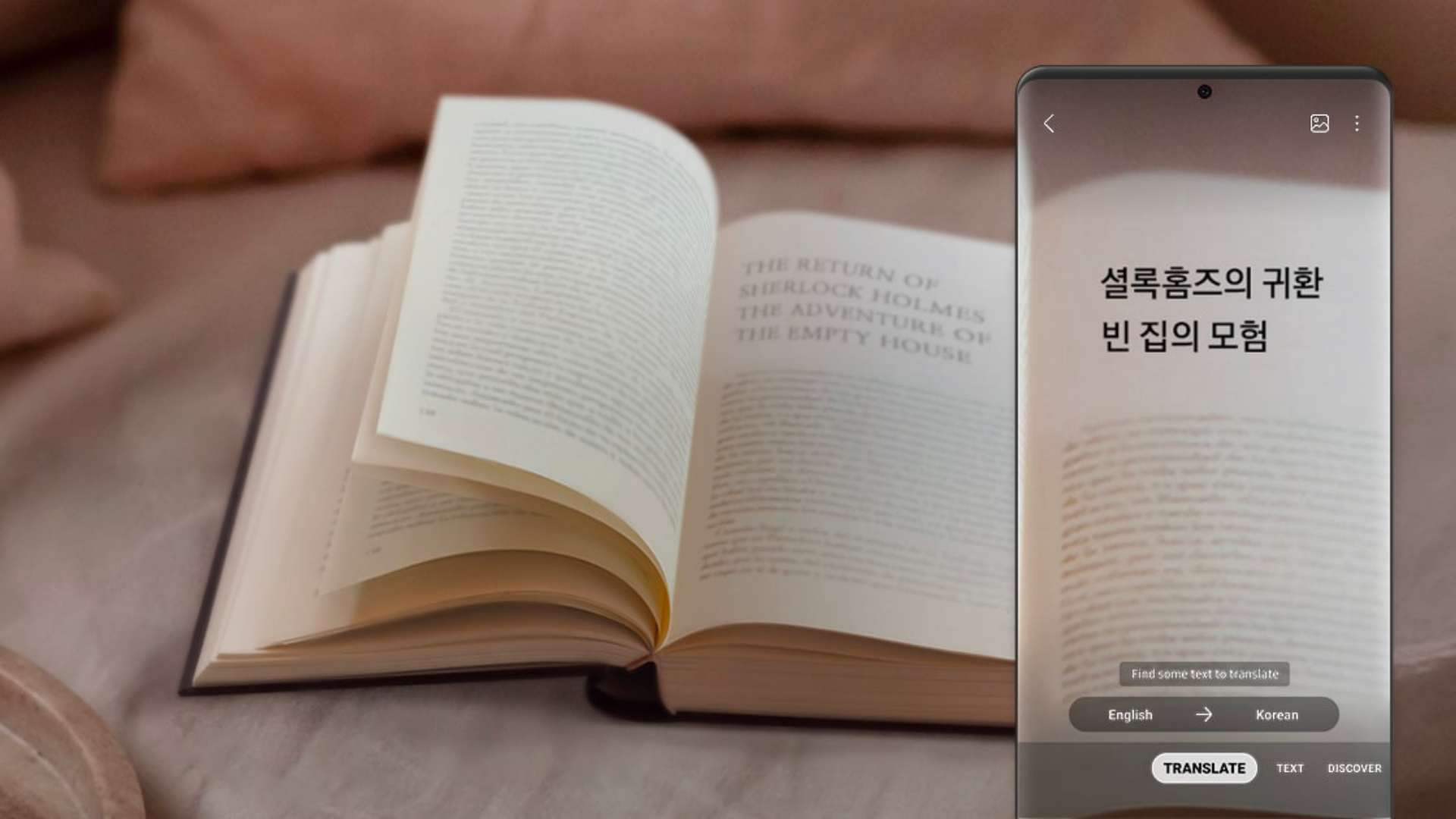
With Bixby Vision, you won’t need to download a third-party app such as Google Translate!
#9: Samsung Bixby helps to further automate your smart home
If you control your smart home devices with the Samsung SmartThings app, Samsung Bixby is about to make it a whole lot easier.
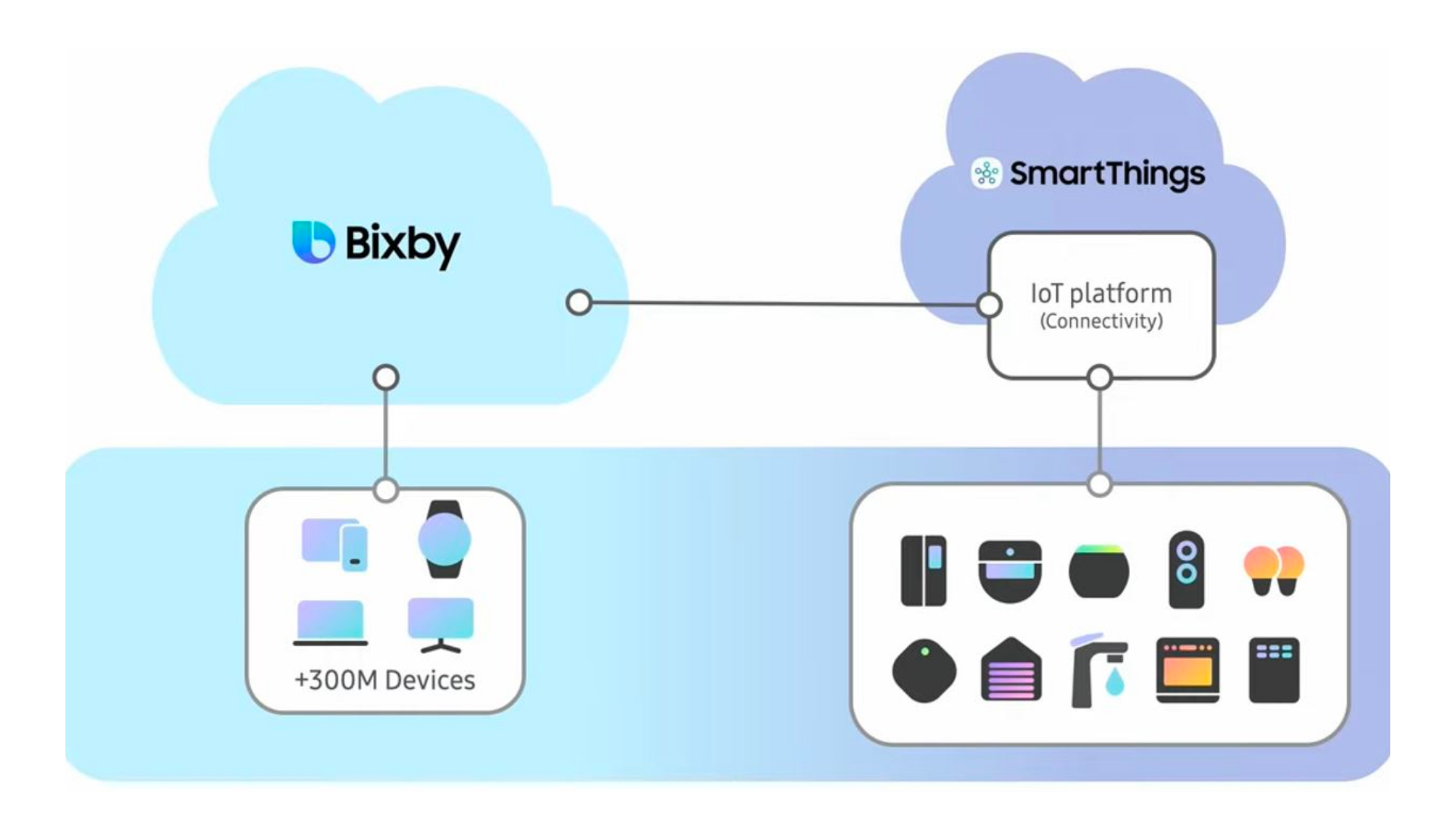
Instead of opening the app on your phone and tapping on the controls, you can simply issue voice commands instead.
Here are some examples of voice commands you can use:
These voice commands work with scenes as well.
For example, say you’ve previously created a scene for your bedtime routine, and you’ve configured the trigger phrase to be “going to bed”.
You can use voice control to activate this as well – just say “Bixby, going to bed” and it’ll trigger the scene.
Samsung Bixby FAQs
Have some questions about Samsung Bixby?
Read on to get them answered.
Q: How do I set up and activate Samsung Bixby on my Samsung device?
A: First, press and hold the side key* while your phone is unlocked.
*If your phone doesn't have a side key, you can click on the Bixby app icon on your home screen.
Select the language you wish to communicate with Bixby Voice and tap ‘Confirm’.
Log into your Samsung account. If you’re already signed in, you can proceed.
You will then be prompted to read and agree to the terms and conditions, where you can tap ‘Next’ to continue.
A Bixby tutorial will pop up and Bixby is now ready for use!
Q: Do you need WiFi or mobile data to use Samsung Bixby?
Yes, you will need to be connected to a WiFi network or mobile data to use Samsung Bixby on your device.
A final word on Samsung Bixby
That’s all we have for you on Samsung Bixby!
As you can see, there are tons of cool things you can do with Samsung Bixby.
From keeping track of your appointments to retrieving pictures hidden deep in your photo gallery, Bixby can do it all 😎
Want to experience Samsung Bixby first-hand? Go ahead and shop Samsung phones on Singtel.