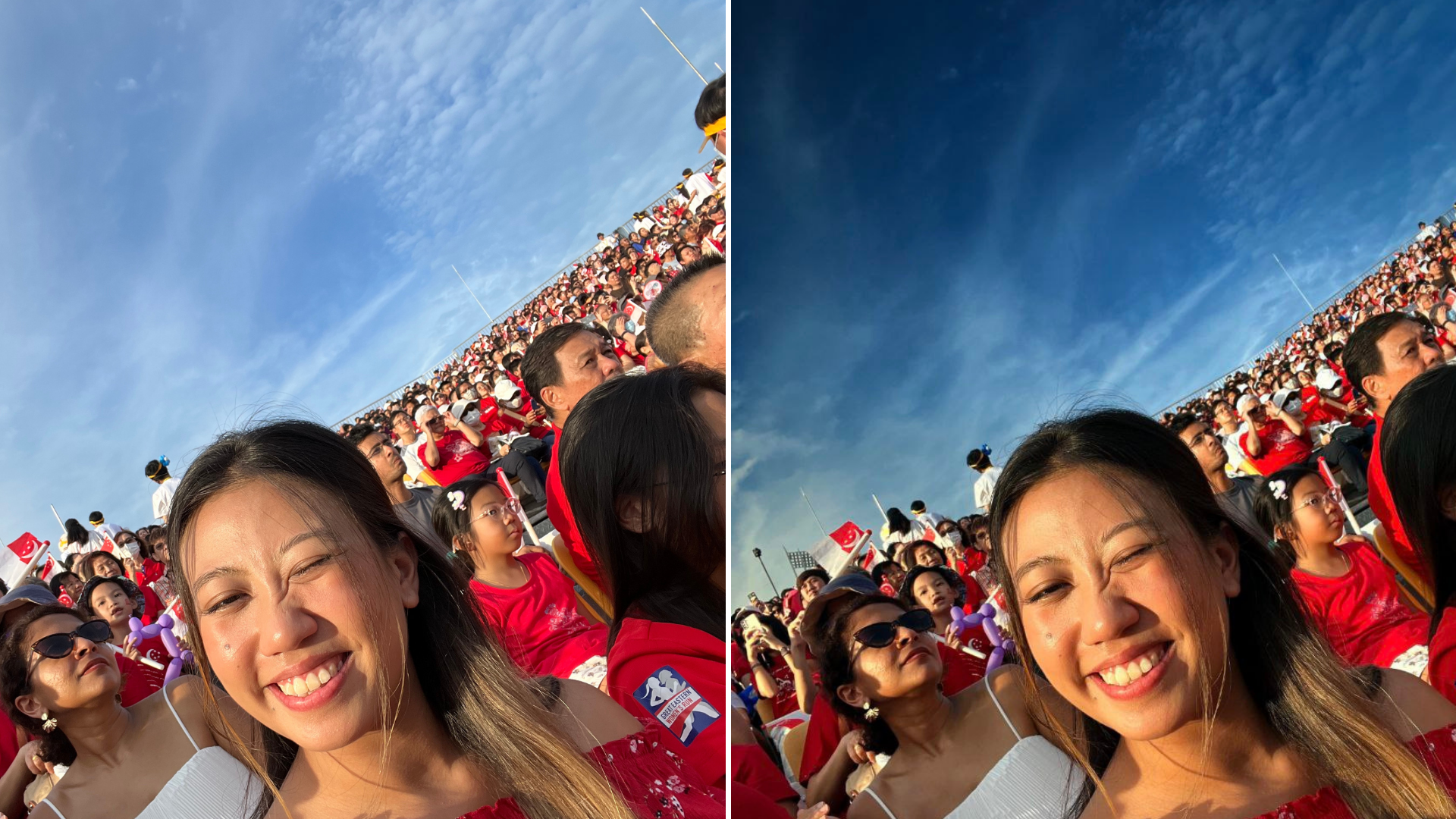
We tried the Pixel 8 Pro's camera - the results were amazing.
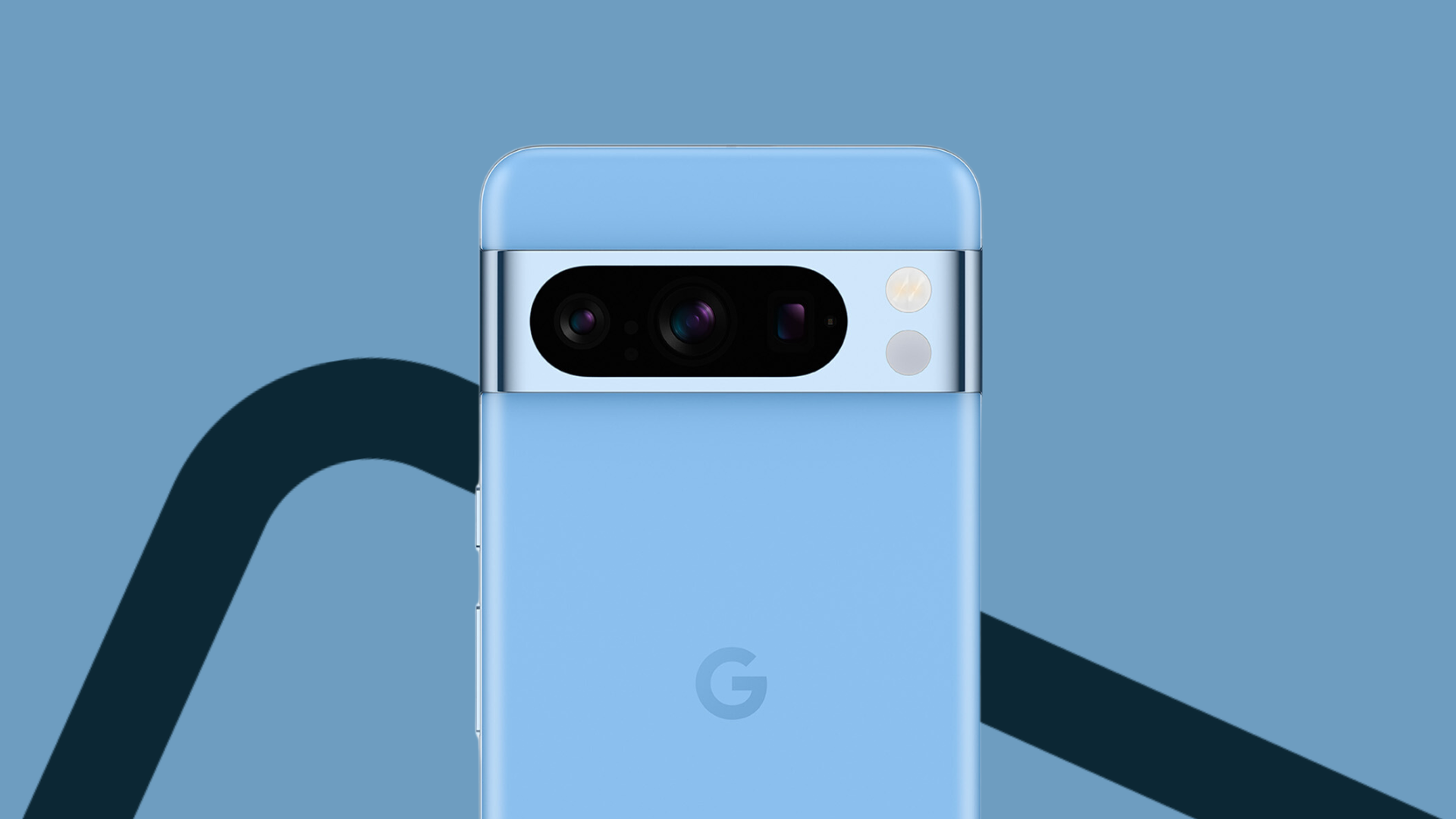
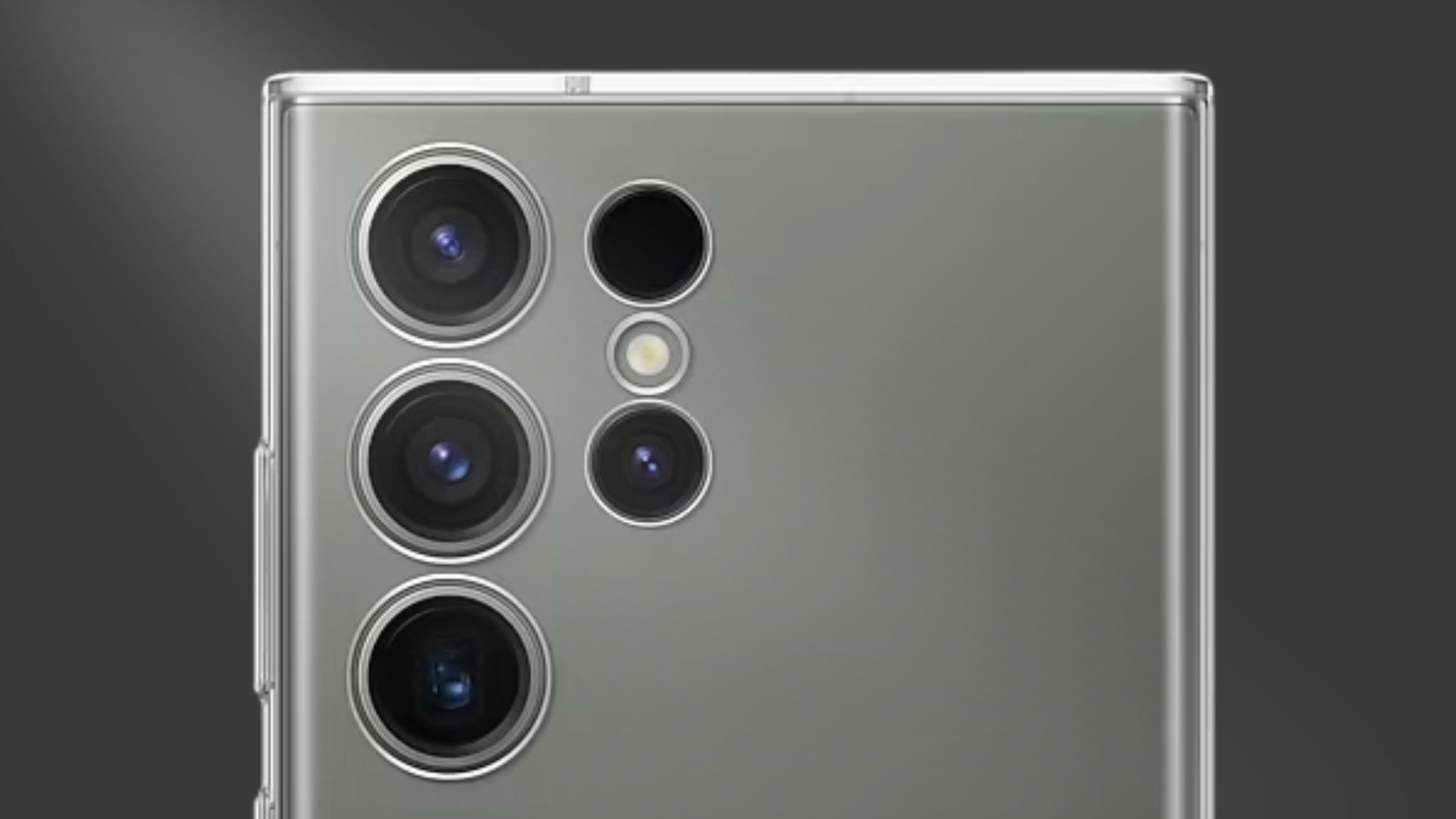
Pixel phones are known for their amazing cameras, so when we got our hands on the Pixel 8 Pro, we were excited (to say the least!) to check out its camera.
In this article, we’ll review the Pixel 8 Pro, focusing specifically on its camera + editing capabilities.
Will the Pixel 8 Pro live up to the hype?
Read our Pixel 8 Pro camera review to find out more!
You can also shop the Pixel 8 and 8 Pro via these links:
Pixel 8 Pro: Camera specs
Here are the camera specs for the Pixel 8 Pro:
Comparing the Pixel 8 Pro vs the Pixel 7 Pro’s camera, we can see that there's a noticeable upgrade.
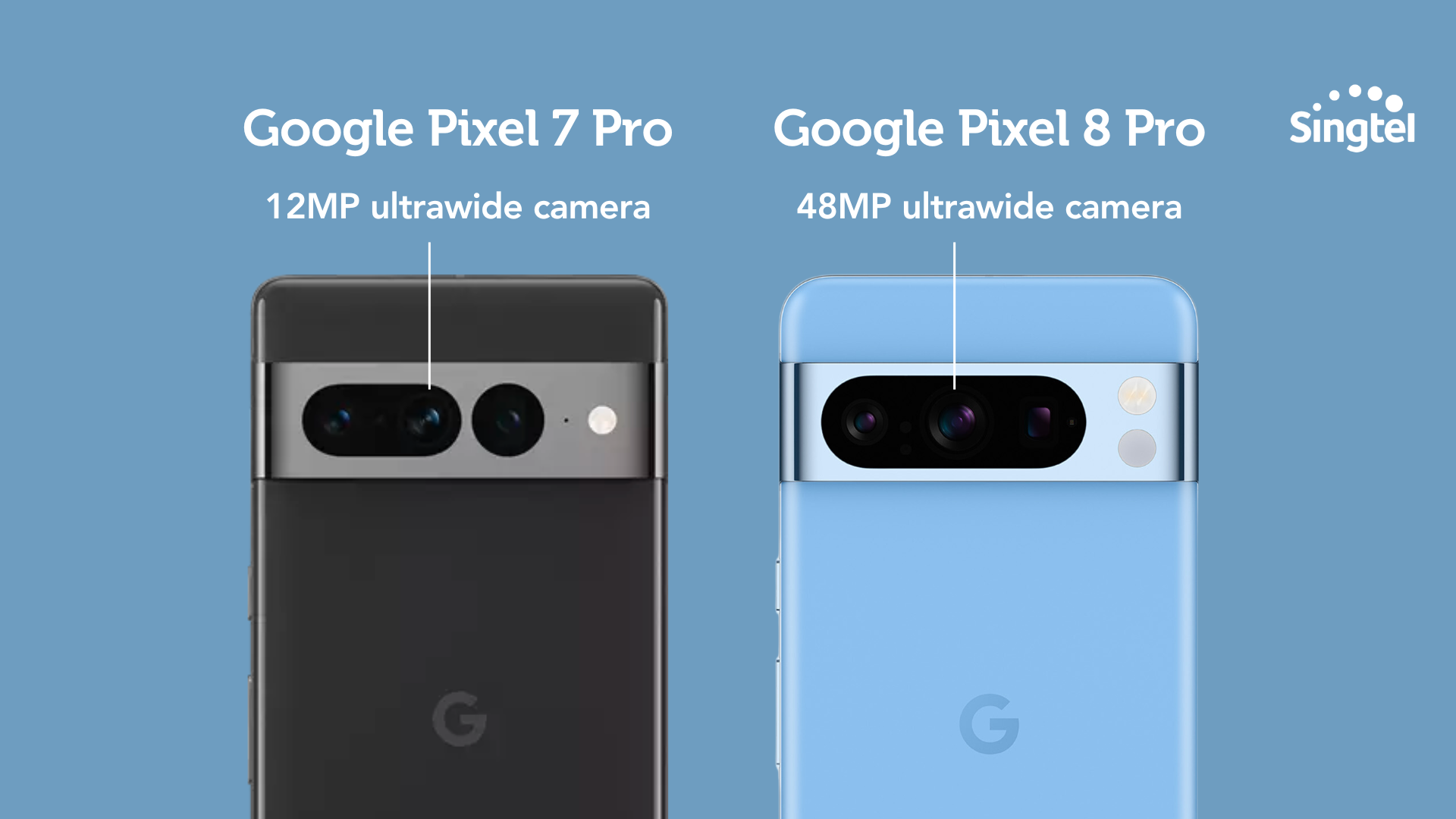
The Pixel 7 Pro comes with a 12MP ultrawide camera, while the Pixel 8 Pro features a 48MP ultrawide camera.
The Pixel 8 Pro also now gives you full manual controls for both photos and videos.
You can adjust the ISO, shutter speed, white balance, and other settings to have full control over your photography.
This wasn’t possible with the Pixel 7 Pro, and it's been a long-awaited addition that photography enthusiasts have eagerly anticipated.
And like previous Pixel models, the Pixel 8 Pro can capture photos in Ultra high dynamic range (HDR)!
Additionally, the Pixel 8 Pro’s 48MP telephoto lens allows 56% more light in, resulting in better exposure compared to its predecessors.
Pixel 8 Pro: Review of the camera
We tested out the Google Pixel 8 Pro’s camera for ourselves, and it delivered great results across different photography categories: lowlight photography, macro, selfies, architecture.
Night photography:
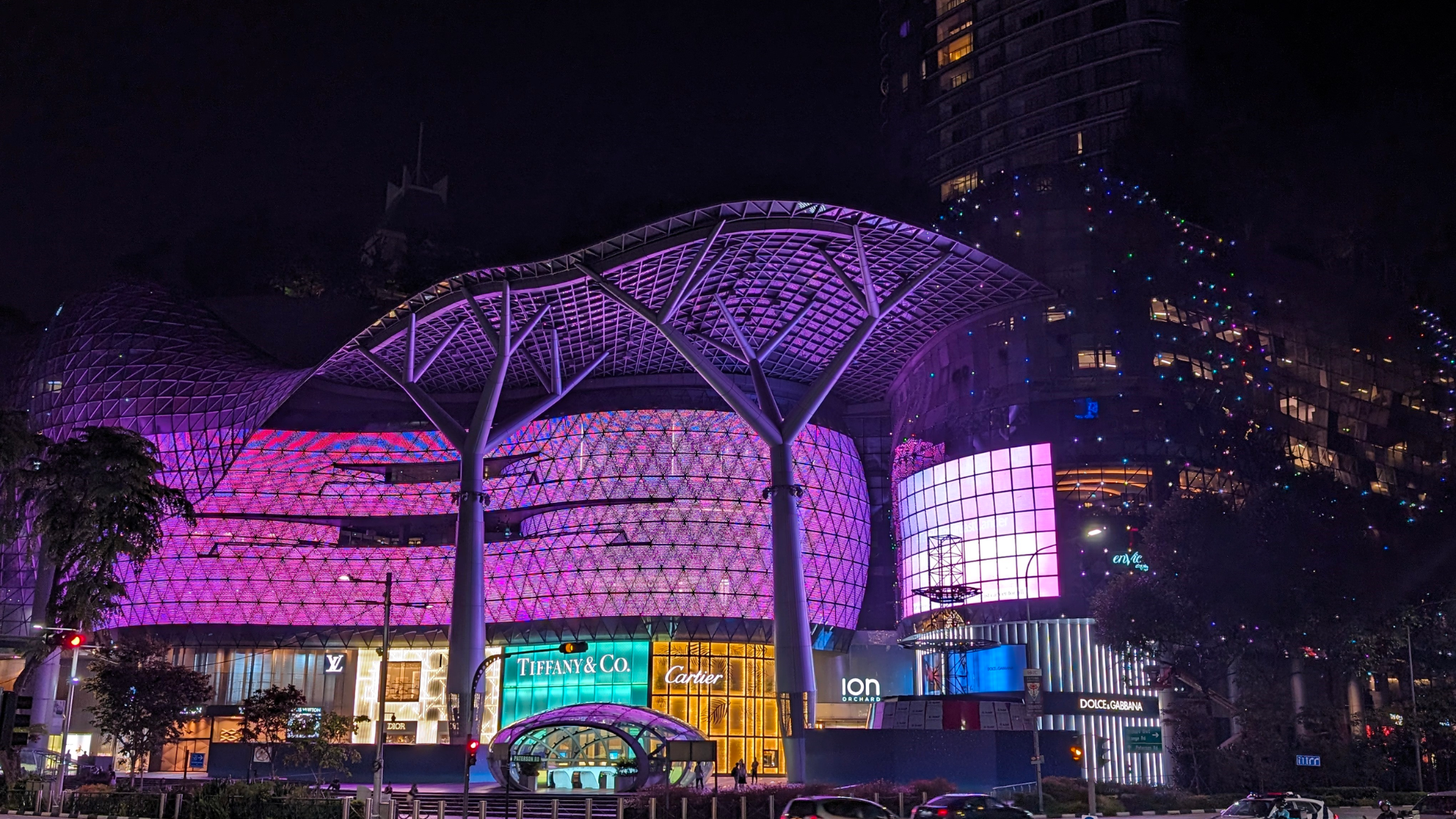
With the lowlight image, the Pixel 8 Pro was able to capture intricate details and provide a balanced representation of colours while keeping noise to a minimum.
Selfies:

Selfies taken with the Pixel 8 Pro showcased clear and natural skin tones, and were sharp and focused.
PS: Traditionally, selfies or images captured with a phone’s front camera tend to be lower quality (reduced clarity, increased graininess) as compared to those taken with the rear camera.
However, with the Pixel 8 Pro, we couldn’t discern any significant difference in quality between pictures taken with the front vs rear cameras. Very impressive!
Macro photography:
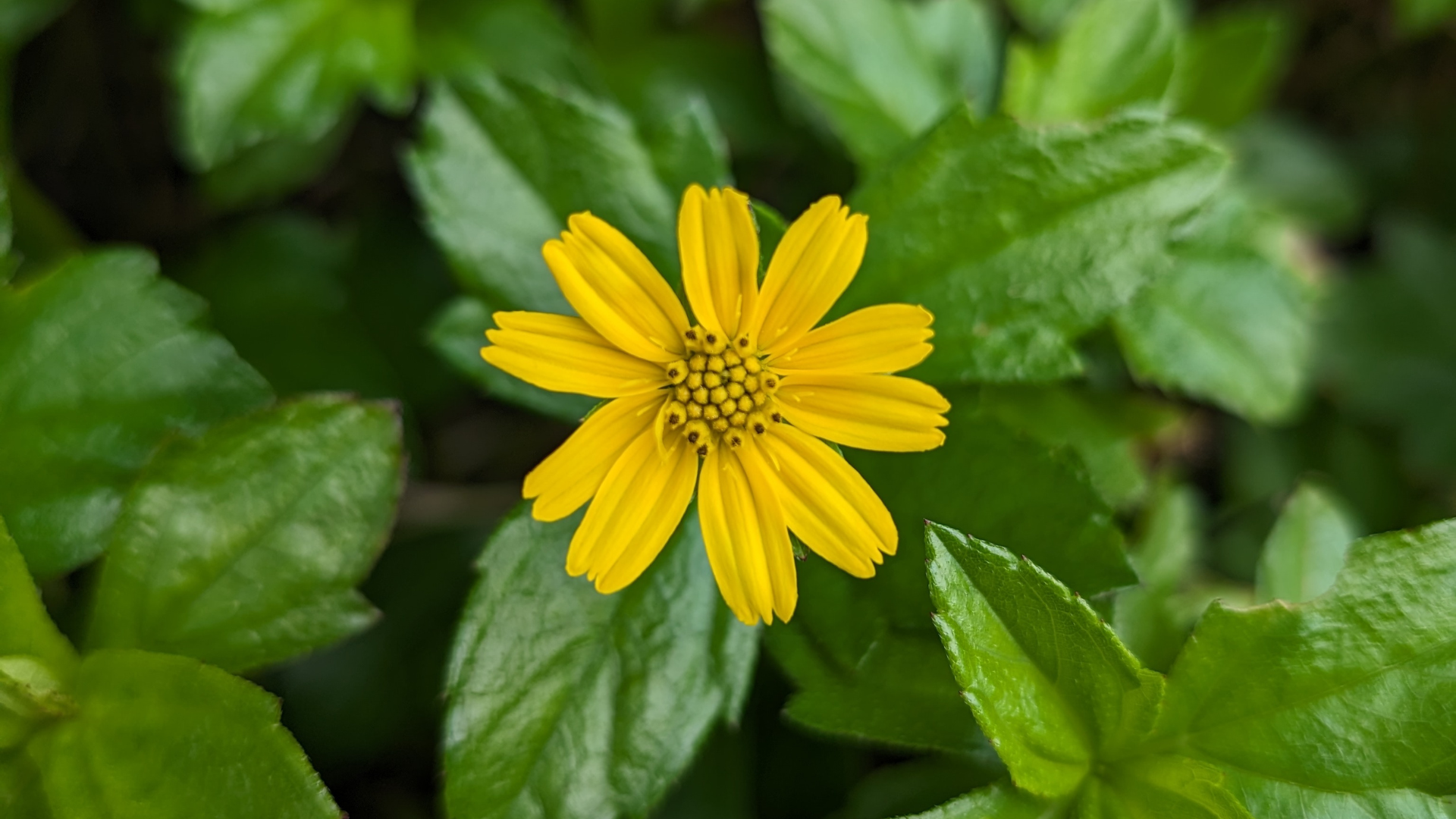
With macro photography, the Pixel 8 Pro was able to bring even the tiniest subjects to life.
Architecture photography:
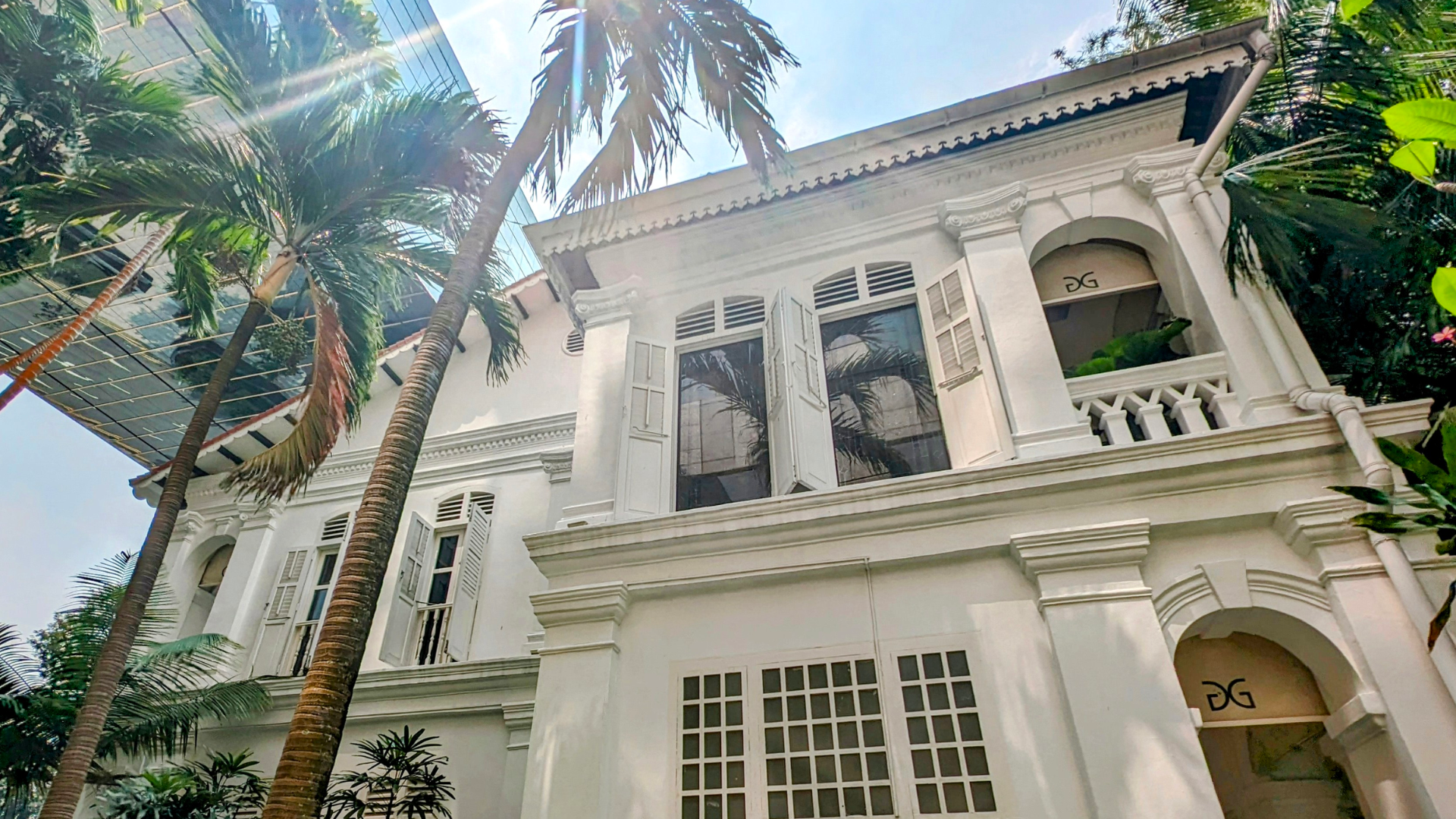
For our architectural photos, the buildings we shot were rendered realistically, and even the finer details were captured with clarity and precision.
Pixel 8 Pro: Review of the AI photo-editing features
With the Pixel 8 and Pixel 8 Pro, one thing we keep hearing from Google is the fact that it’s “AI-powered”.
But what does this really mean?
Simply put, Google has utilised AI to power several innovative features for the Pixel phone – for example, Magic Eraser, Photo Unblur, and Best Take.
These features make taking and editing a good picture really easy.
For example, with Magic Eraser, you can easily remove unwanted people or objects from your picture.
And with Photo Unblur, you can sharpen any blur images, giving you a better looking image.
In our review, we’ve put each of these features to the test... scroll down to find out more!
Magic Editor
With Magic Editor, you can select subjects in your photo and move them, or make them larger or smaller in size.
It’s basically Photoshop but much easier, with no learning curve. (Plus you’re doing it natively on the phone – you don’t need to download any third-party apps).
We tried it out, and here’s how it works.
After selecting a subject or item, you can drag it to change its position, or pinch to scale the size up and down:
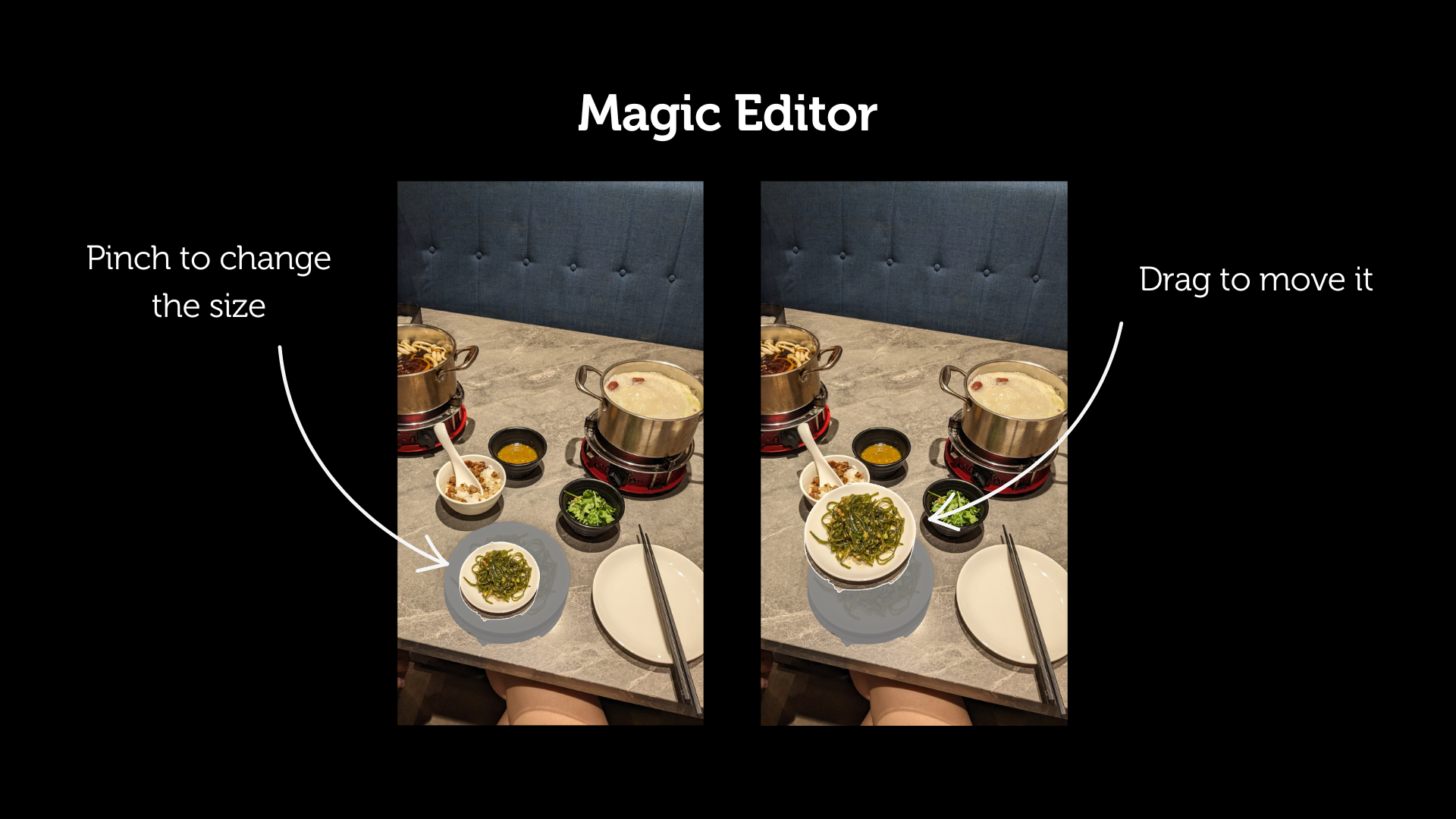
After playing around with it, here’s what we ended up with:
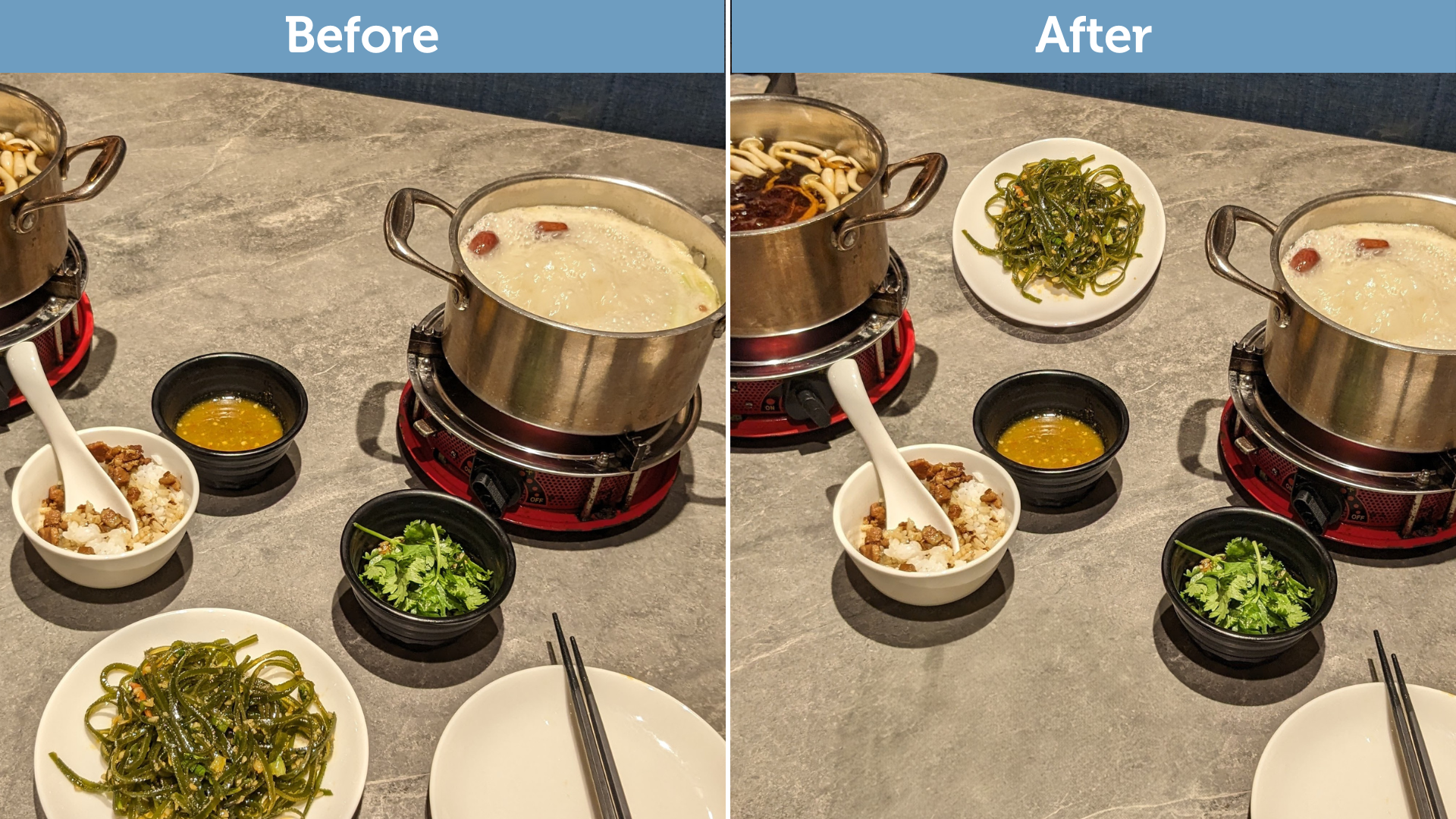
We showed the “after” picture to our colleagues, and no one could tell it was edited.
Magic Eraser
Magic Eraser is perfect for when you’re travelling and you want a shot without all the other tourists in the background.
We used it on one of our pictures, and it worked beautifully:

Photo Unblur
Photo Unblur is pretty self-explanatory.
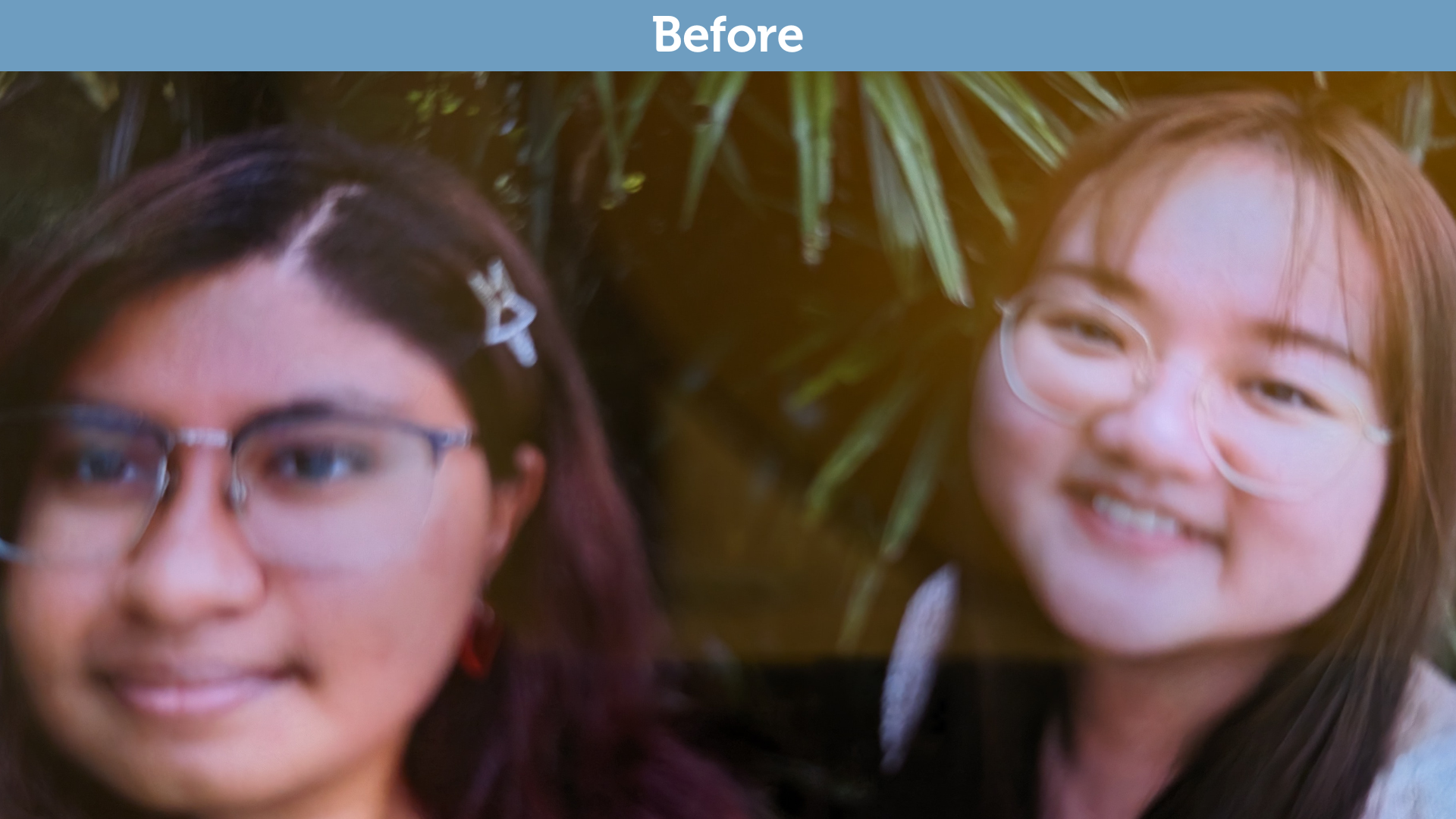
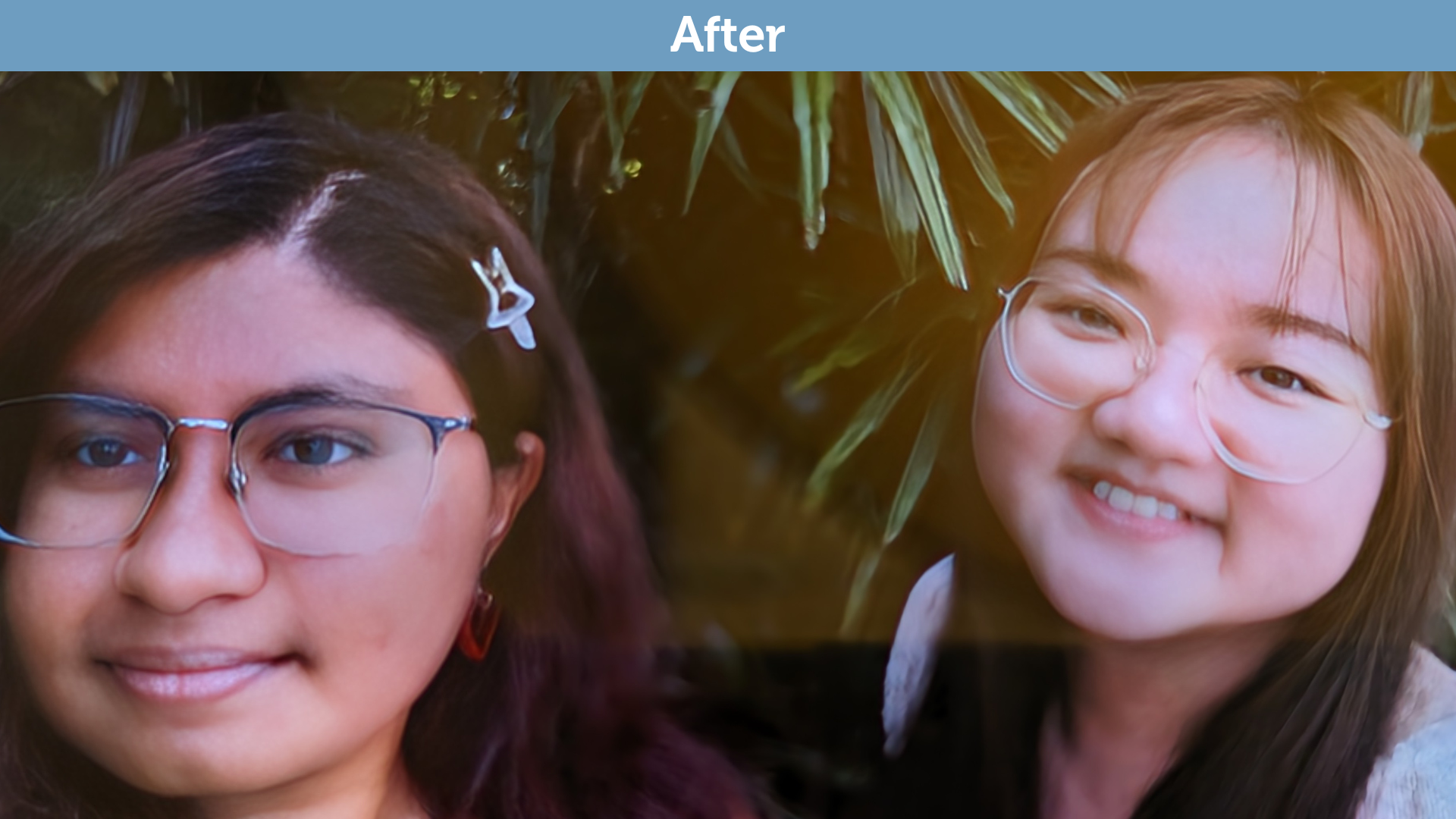
You take a blur photo, click on “Unblur”, and it spits out a sharper version for you.
We used this on a blurry picture, and the results were pretty impressive:
Best Take
Best Take combines similar pictures into one, where everyone looks their best.
So, say you're taking a selfie with a friend, and you snap a couple of shots.
In the first image, you're blinking. In the second image, your friend is mid-sentence and isn't smiling.
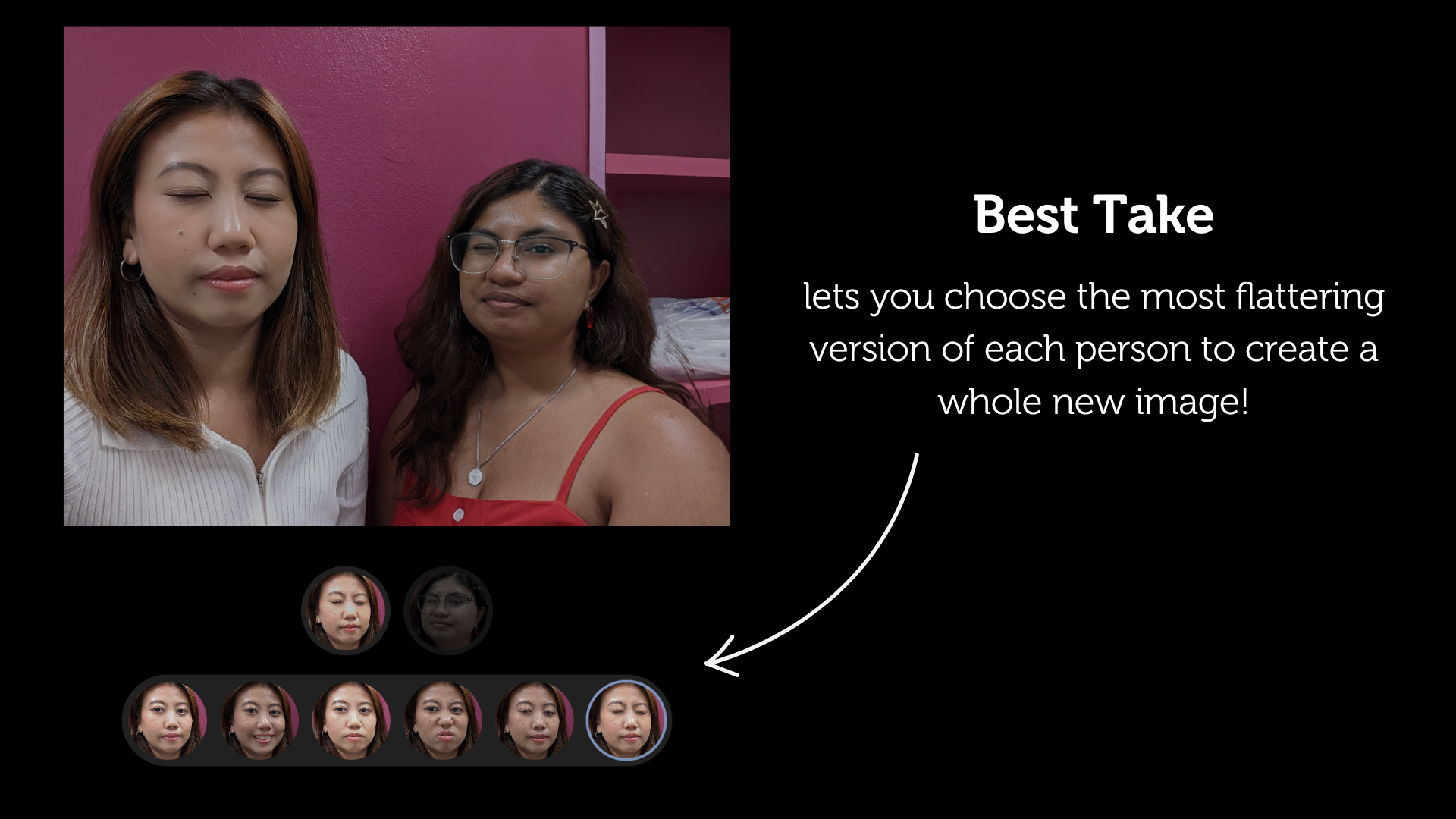
With Best Take, you can combine your faces from both images (choosing the most flattering version for each person) to stitch together a whole new image.
Here's how the editing interface works:
And here's how we stitched together two pictures to get a more flattering final picture:
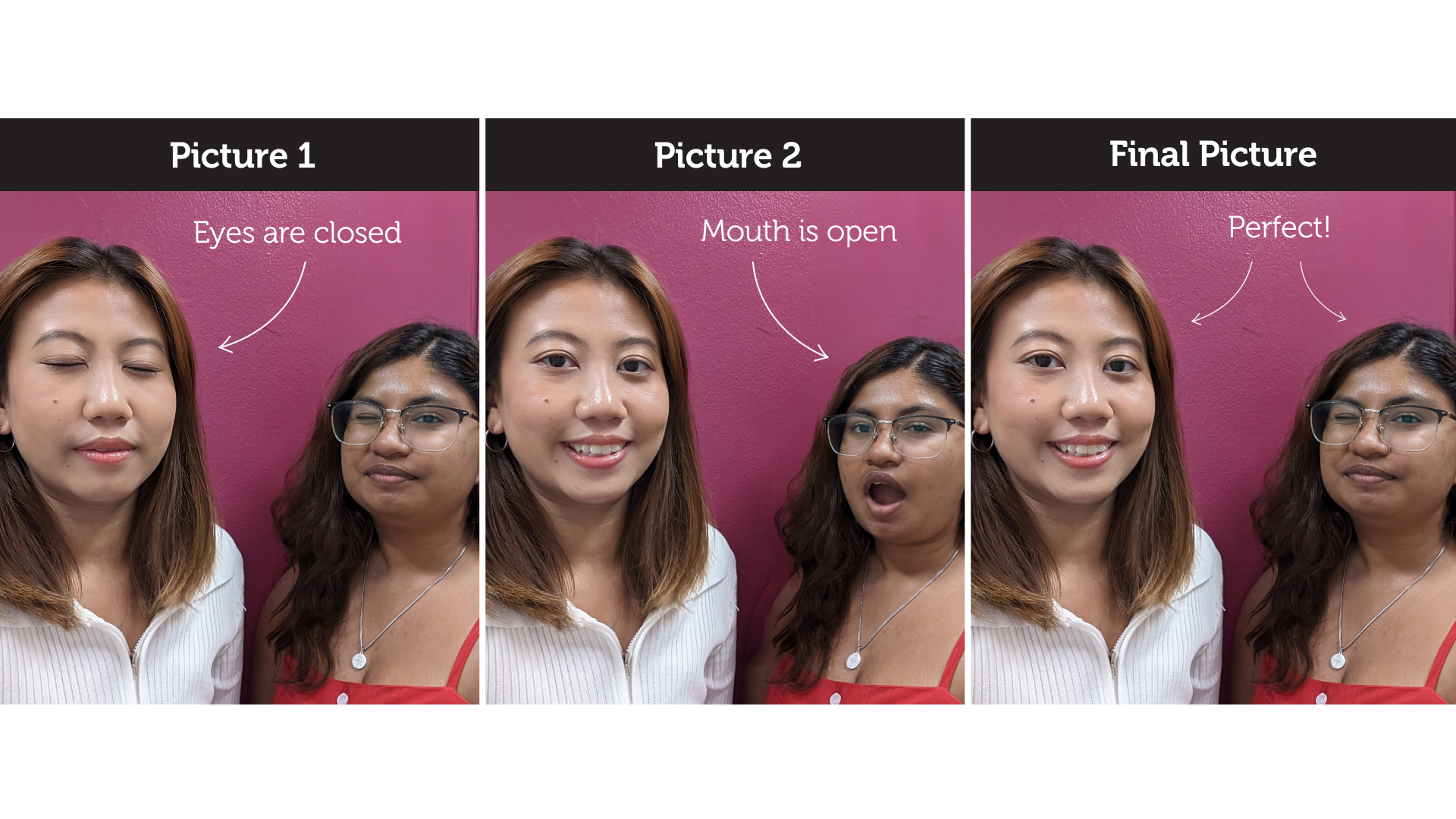
The final picture looks really seamless – you can't tell that it’s been pieced together or edited.
The crazy part is that there's no limit on the number of faces that you can do this with.
Even if you have 10 or 20 people in your group shot, you can use Best Take to create the most flattering image, where each individual person looks good 😱
PS: These features we've discussed (Magic Eraser, Photo Unblur, Best Take, and Magic Editor) don't just work with pictures that you take with a Pixel 8 Pro.
You can apply them to any photos in your photo gallery, and they'll work as well.*
*Note that for Best Take, you'll need to have a series of similar-looking shots in order for the feature to work.
This means that if you switch over to the Pixel 8 Pro from whatever brand you were using before, you can use these features on the existing photos in your camera roll.
Pixel 8 Pro camera review: A final word on the Pixel 8 Pro’s camera
When we first heard about the Pixel 8 and 8 Pro's 'AI' tagline, honestly, we were wondering if it was just another buzzword that they chose to adopt for their marketing campaign.
But having tried the phone and the editing features, we're sold.
The AI capabilities genuinely enhance the user experience and deliver on Google's promise of a smarter, more intuitive smartphone.
If you love taking pictures on your phone and want to be able to edit your pictures quickly and easily, the Google Pixel 8 Pro stands out as the best Google Pixel phone for photography.
Shop the Pixel 8 and 8 Pro now: